Services

Media slider

Media slider component can be used to present multiple images with captions in a slide show format.
Note that these instructions apply to the renewed version of the Media slider component that will be updated in March/April 2026.

Slider for multiple images

Compared to the previous version, the current slider has one mode where the images are shown in a 1,3:1 aspect ratio. The preview of the next and previous images shows a sneak peek.

The Media slider component can be used on all content types except Person profile, LWL course and Open uni course.

Instructions on use

See the component below. It has used all possible fields with the field names as the text. The example slider component has 3 images.
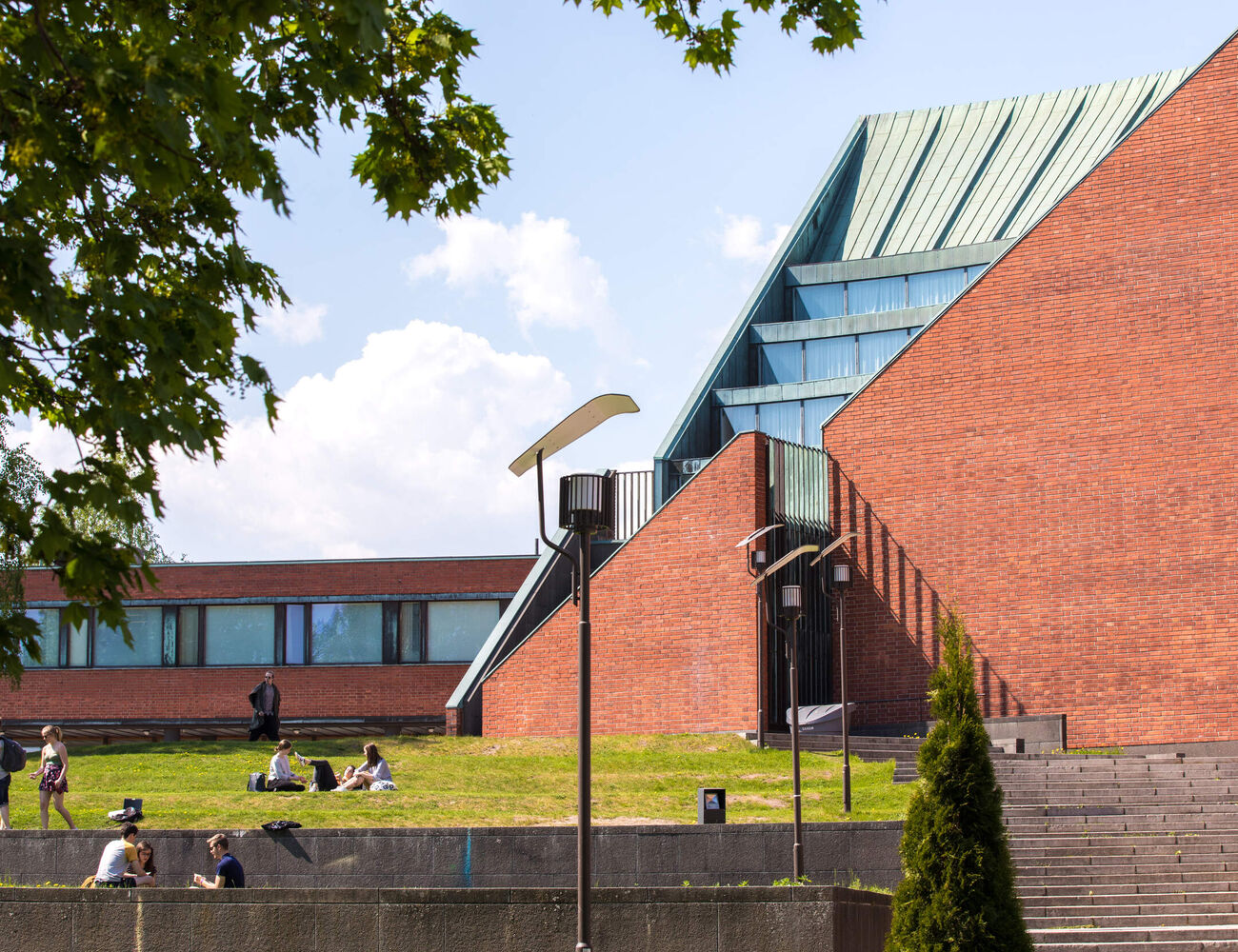
Example title (optional)

This is the description field that is also optional.

Note that this component will change looks upon the visual update in March/April 2026. For the new image format you can refer to the image below showing the aspect ratios.

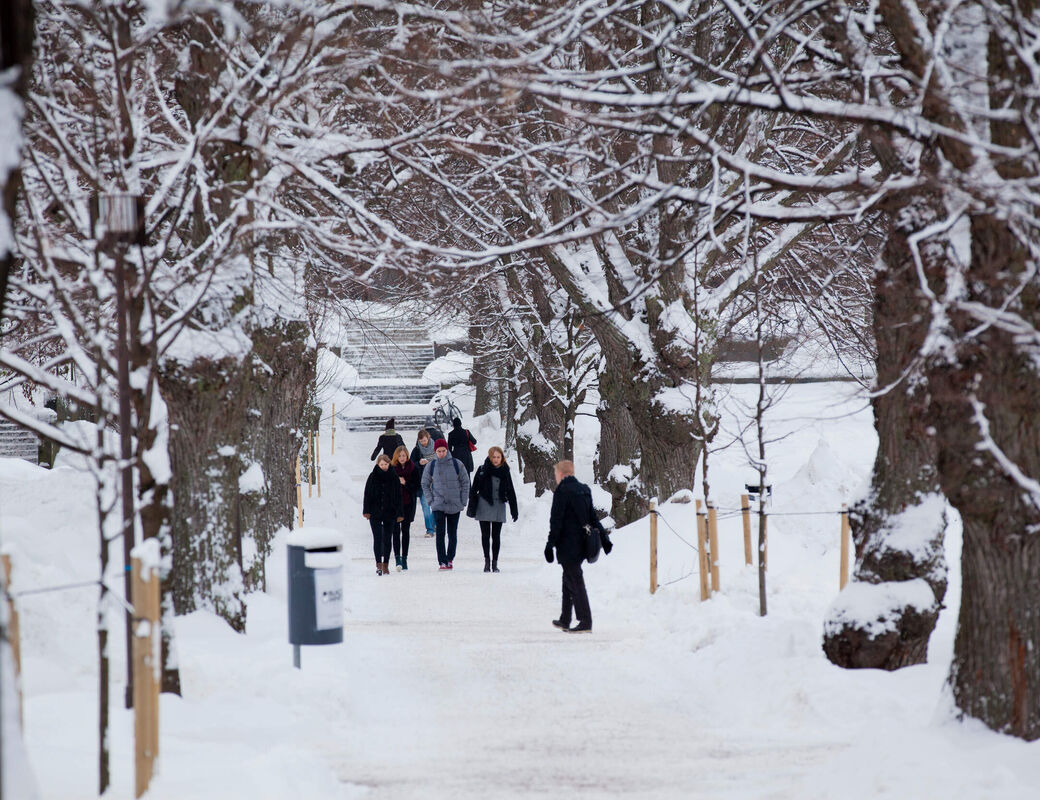
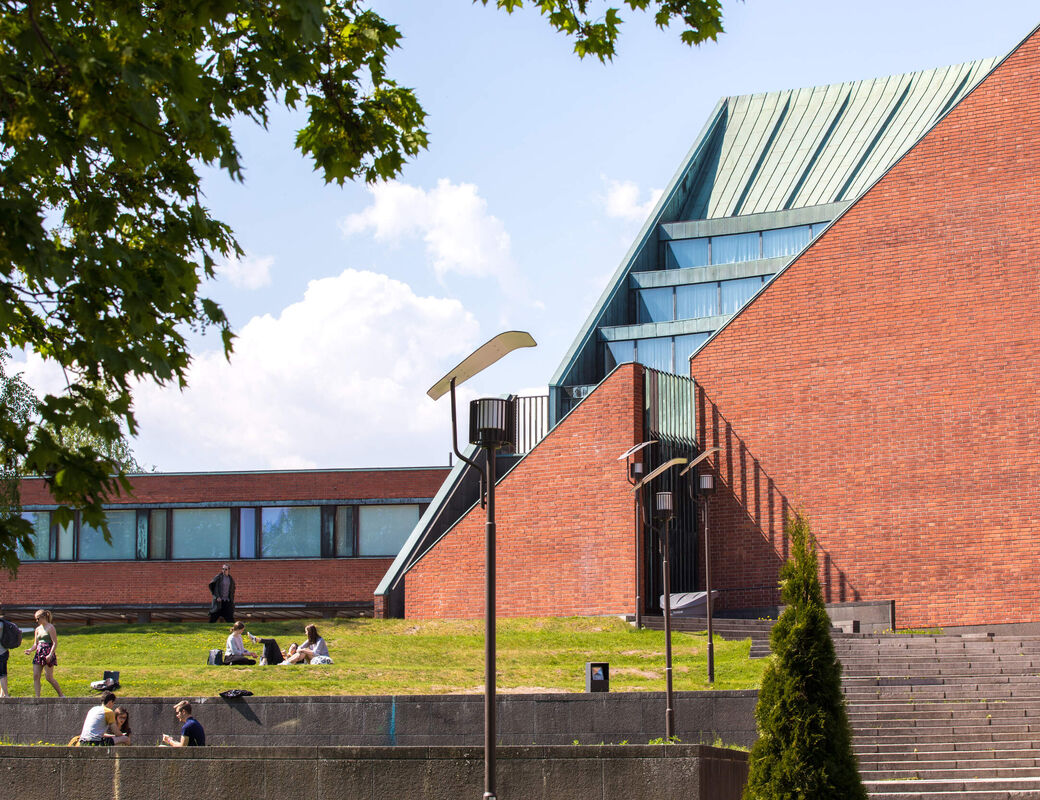
    People relax on a grassy area near a modern building with red brick walls and large glass windows under a blue sky.

    The first image. You can write freely, but it's good practice to keep the texts between different images approximately same length.

    You can edit the text with bold, italics or even create links and link highlights as below.

    Link highlight

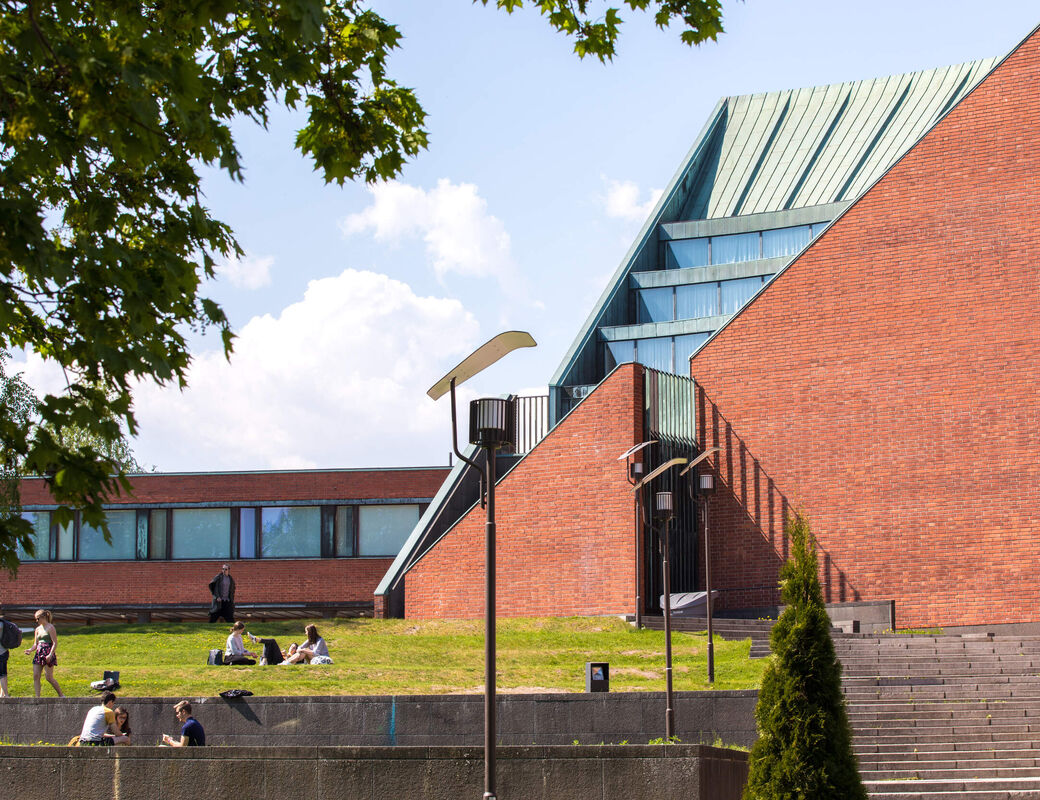
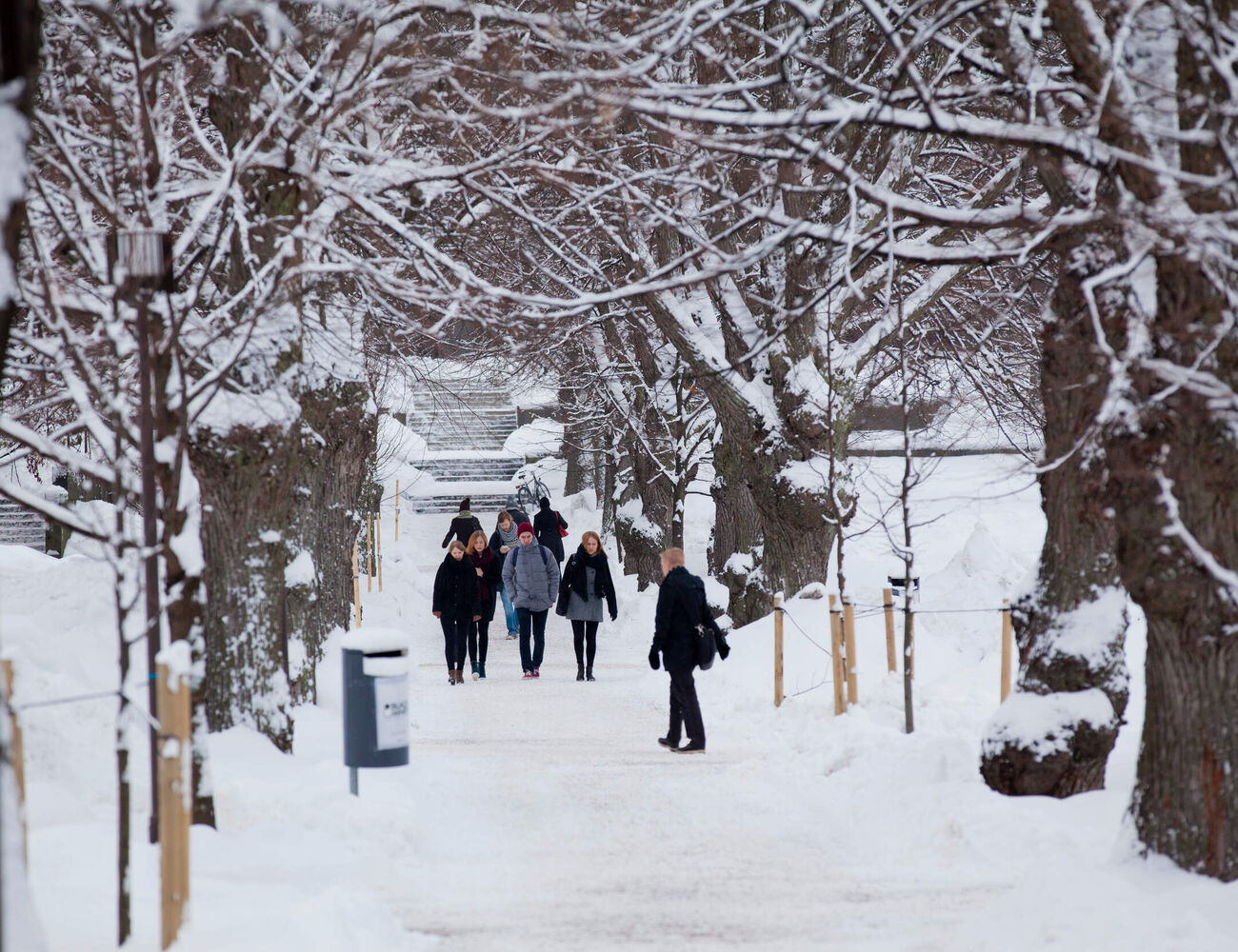
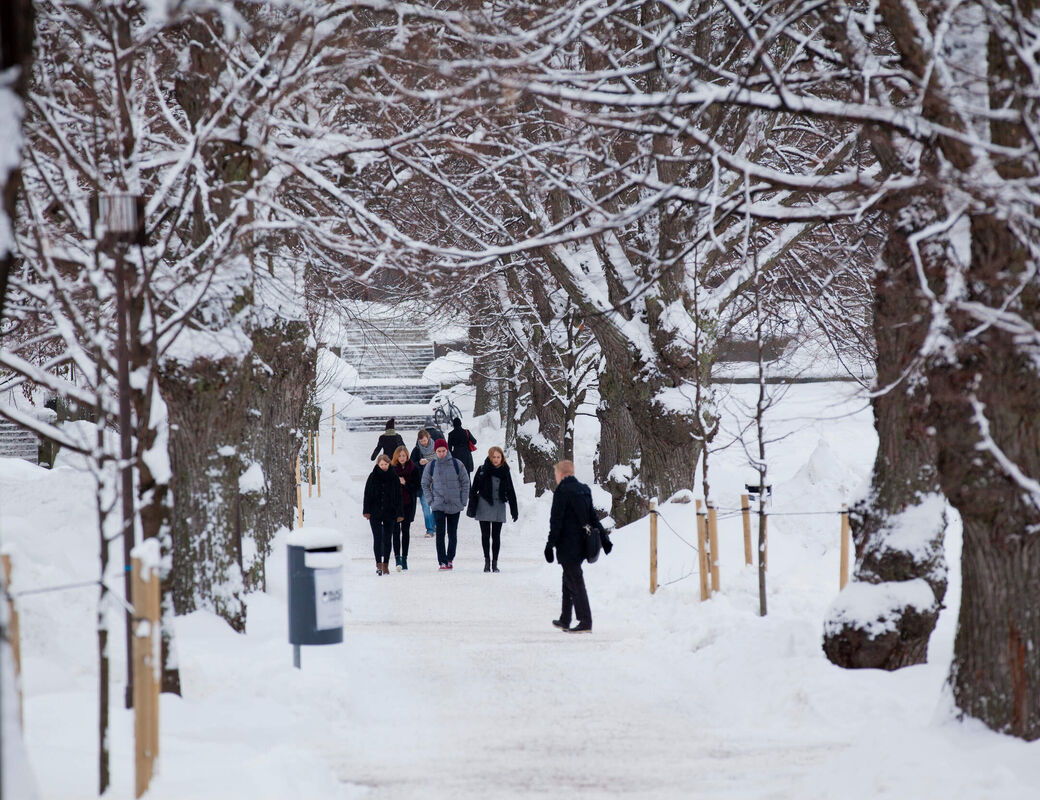
    Winter scenery from Otaniemi campus

    The second image text field.

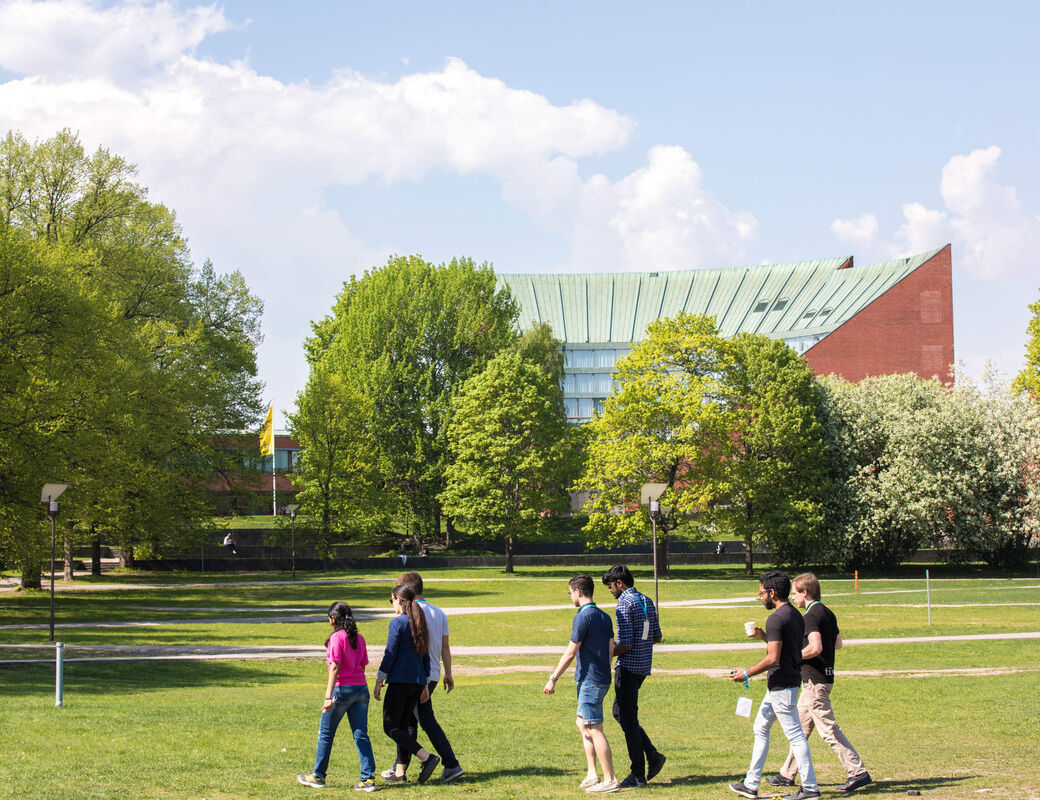
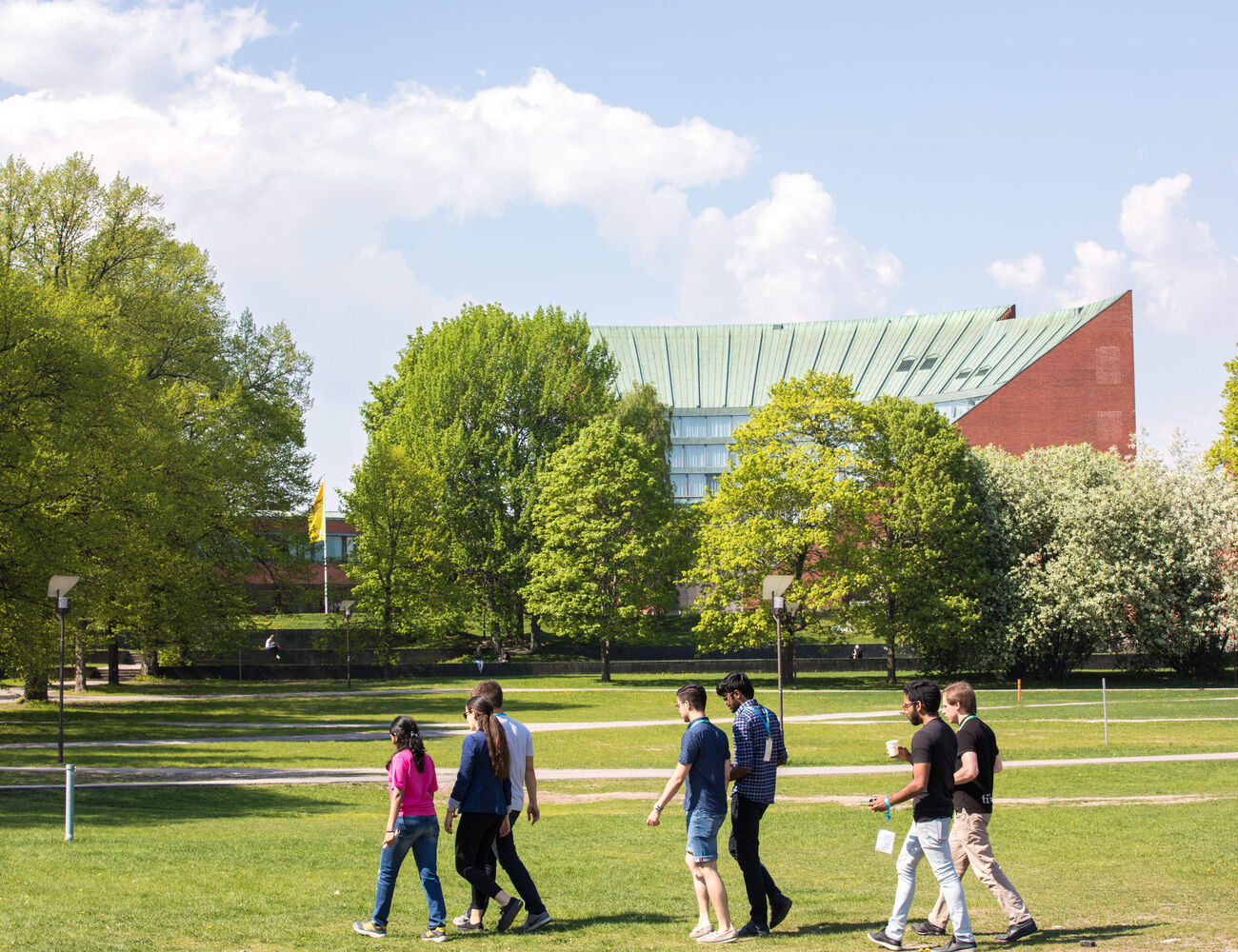
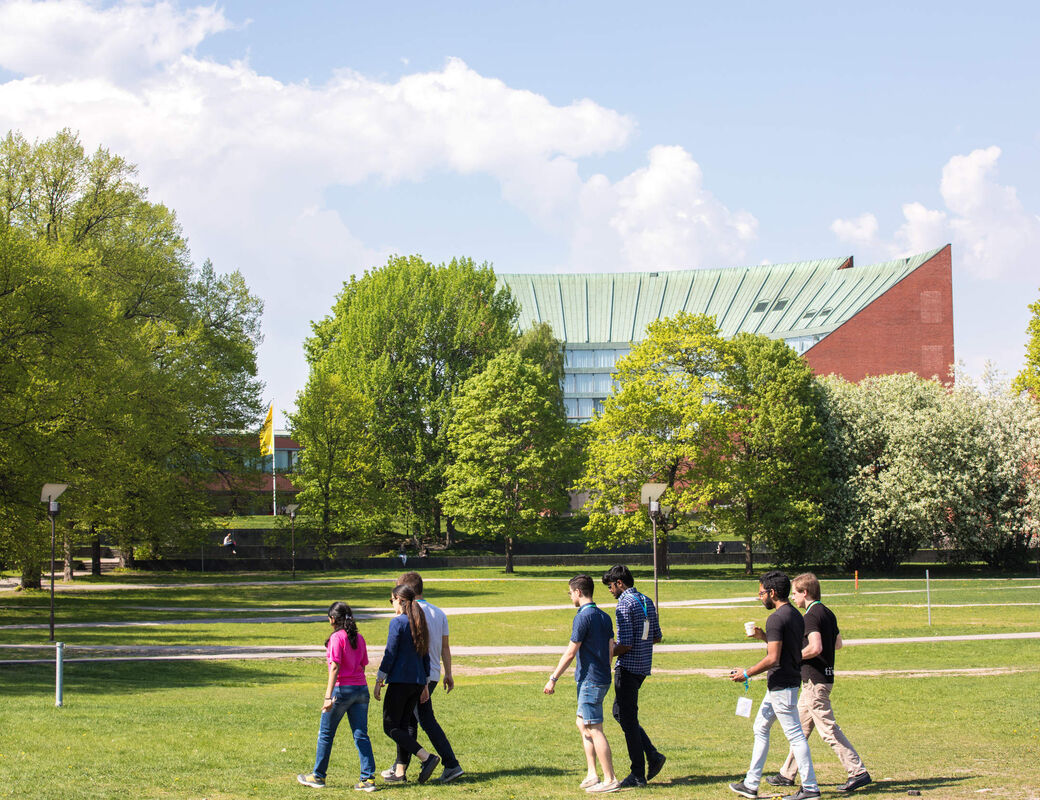
    Group of people walking across a green park with trees. Aalto's buildings in the background.

    Third image text field.

    Geometric design with grey rectangles, a white circle, and white squares. Text reads: 1.3, 1, 0.8.

    Image aspect ratio in the slider (2026 onwards)

    The images in the slider will be shown in 1,3:1 aspect ratio. The ratio will remain the same in all display sizes.
    You might also be interested in these

    Image and media components for aalto.fi

    There are several ways to display images and media at aalto.fi. Learn more about the media slider, gallery and video component.

    Adding images, ALT text, changing cropping and focal points

    Learn how to upload images and add alternative text (alt text) for accessibility. Changing the focal point of an image will affect how the image is cropped on different screens.

    Väre building in the campus. Inside shot of natural light filled dark wood staircase criss-crossing in white surroundings. Light through skylights. Photo by Aalto University / Tuomas Uusheimo
    This service is provided by:

    Communications Services

    For further support, please contact us.
    • Updated:
    • Published:
    Share
    URL copied!