






Pilot: Using Schoolyear for Supervised On-Campus Electronic Exams
These instructions will be expanded and refined as the pilot progresses.

In short
- Pilot: Schoolyear is in pilot use at Aalto. The pilot tests a new way to conduct supervised, controlled electronic exams on students’ own devices (BYOD), allowing teacher‑approved links, attachments, and applications.
- For teachers: Step‑by‑step instructions for deploying a Schoolyear exam in the MyCourses Quiz activity.
- For students and the exam: Install Schoolyear in advance, run the device check and a technical test; follow exam‑hall instructions (network, sign‑in, submission). The page also provides tips for common technical issues and links to support materials.
At the moment, in addition to links and attachments, the following applications are available:
- From the “Datascience” icon: RStudio, R, Anaconda, Python, Pyromat
- From the “Office” icon: Excel, Word, PowerPoint
- From the “RStudio” icon: R, RStudio
Schoolyear Exam in the MyCourses Quiz Activity: Step‑by‑Step Setup
- Create the exam on your MyCourses course area using the Quiz activity.
- Set the quiz settings such as Attempts allowed and Review options. If needed, consult the instructions for configuring a Quiz.
- In the Quiz activity settings under Timing, enable the Open the quiz and Close the quiz timings. The exam can be open for a maximum of six hours. If your exam includes students with extended exam time, see the extended time instructions below. If your exam allows applications (e.g., Office Excel), all quiz settings must be finalized at least three hours before the exam start time.
-
Turn on the Schoolyear setting under Extra restrictions on attempts and click Show more. Set Schoolyear exams to Enabled. Save the settings. After saving, return to Extra restrictions on attempts and you will see Open settings widget and Open Dashboard next to Schoolyear. Open the settings widget. Picture Enable Schoolyear
Continue adding settings on the Schoolyear page (you access it via the settings widget). Add the following as appropriate for your exam. Picture Open widget. Picture Open widget.
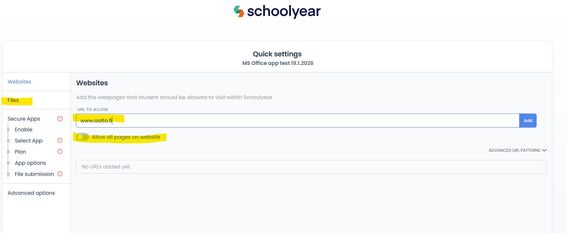
- Links available to students during the exam: go to Websites and paste the address in Paste URL here. Deselect Allow all pages on website if you do not want to allow other pages on that site. Picture Add links.
- Files available to students during the exam: add them on the MyCourses Quiz as part of a question or description. It is not recommended to add files on the Schoolyear side. Set the files to open in a new window. Pictuer Opening a document in a new window.
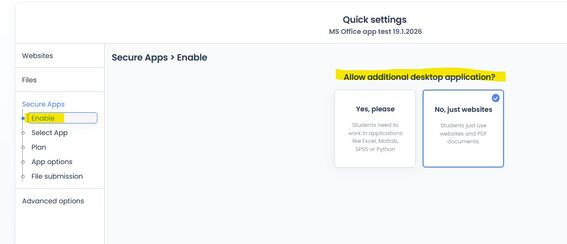
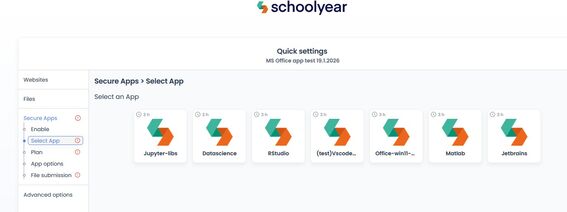
- Applications allowed during the exam are set under Secure Apps. Answer Yes, please to Allow additional desktop application. Proceed by clicking Next at the bottom. Select the resource, for example Office, to make Excel available to students. Picture Choose applicatios and Available applications.
- In the Plan section, add the number of students participating in the exam. Note: this number cannot be exceeded during the exam. The start and end times come from the Quiz activity settings.
- File submission: select No; it is recommended to use the Quiz activity’s own file upload instead. If you want to allow file submission in the quiz use Essay type question and choose Response options: use html editor with file picker and Allow attachments: choose how many are allowed and/or required.
- You can, if you wish, add a password to the Schoolyear dashboard in addition to the MyCourses exam password. The Schoolyear password can be changed during the exam.
- Further instructions: Schoolyear — Secure a Quiz in Moodle with Schoolyear Settings



Testing the Exam
- Download the Schoolyear application to your device. You can download it either by opening your test exam and following the instructions, or from Schoolyear’s website Device check. If needed, contact the ITS Service Desk. Note: Schoolyear exams cannot currently be taken on centrally managed Mac devices. Schoolyear exams do work on students’ personal Mac devices.
- If testing on your own device is not possible, you can also test the exam in computer classrooms where Schoolyear is installed. You can find these rooms in the booking system by searching for “Schoolyear.”
- You can request additional guidance and support for testing or the exam from the My Teaching Support service.
Extended time in a Schoolyear exam
Set either group-based or individual time extension in the Quiz using these instructions: https://www.aalto.fi/en/services/electronic-exams-using-safe-exam-browser-in-supervised-on-campus-exams and Extended time for exams. In the Quiz settings under Timing, set the quiz open and close times according to the extended-time sitting, and limit the exam duration using the Time limit setting. The extra-time adjustments you set will override the time limit for those using the time extension.
Sharing and submitting files in a Schoolyear exam
- You can add a file either directly to a question in the quiz activity or share a file in the exam’s description text. You can add the description with the following steps: Add a question, choose the question type Other and Description, and add it.
- If you want students to be able to submit a file or files, you can enable a submission box alongside their answer in the Essay question type. Add an essay question and, under Essay response format and Allow attachments, choose the number of attachments allowed and the required number of attachments.
Student instructions for a supervised electronic Schoolyear exam held in an exam hall
Teacher, you can copy this template, edit as needed, and include it in the exam instructions. The sections to edit are highlighted in italics. The instructions are also provided as an attachment at the end (to be added when this text is finalized).
The course exam (and the retake exam) will be conducted as a supervised exam in an exam hall, completed on your own laptop in the exam room. Participating in the exam requires that you carefully complete the advance preparations described below.
The exam can only be taken using the Schoolyear application, which you must download to your computer before arriving at the exam hall. The application “locks” the exam environment so that during the exam you can use only the exam in MyCourses and any applications attached to it, such as Excel (the teacher may add or edit).
NOTE! Schoolyear cannot be installed or tested during the actual exam session, so make sure well in advance that your computer works properly in the exam. Install the Schoolyear exam application on your own device well before the exam.
Install the Schoolyear exam application on your computer well in advance of the exam.
- Install Schoolyear on Windows or Install Schoolyear on Mac
- Run the Schoolyear device check
- Take the technical test exam available in the course area. The technical test exam does not contain content questions; its purpose is to ensure your laptop works properly with Schoolyear and that you can open and use any additional applications needed in the exam.
- See also instructions related to the use of Excel and Word.
- If you cannot get Schoolyear to work on your device, first contact IT Services’ user support to resolve the issue and, if necessary, the teacher about the possible use of a loan device.
Preparations close to the exam
- Fully charge your laptop battery and bring your device to the exam. The exam duration is (x) hours. Note that there may be very few power outlets in exam halls, and a seat with an outlet cannot be guaranteed.
- Make sure you remember your Aalto username and password. You will need them for the exam, and passwords saved on the computer are not accessible at that time.
- Teacher, edit as needed: Also bring a pen in case you need to switch to a paper exam due to technical issues, if that is feasible for this exam.
Exam procedure
- Use Aalto University’s wireless network “aalto” or “aalto open.”
- Open the exam from the MyCourses course area; Schoolyear will prompt you to log in to your device again, after which you will be taken directly to the exam. Remember your Aalto username and password.
- You will also need a password to start the exam, which will be distributed in the exam hall. You can take the exam with the password only during the exam’s opening hours and only once.
- When you are finished, submit your exam in MyCourses, but DO NOT CLOSE the exam window or your computer. Bring your device to the invigilator. The invigilator will check your ID and verify on your computer that your exam is in the “submitted” state. You can then close the exam and exit the Schoolyear environment by clicking the exit button in the lower right corner.
- MyCourses automatically saves the answers you have written each time you move to the next page in the exam. If you suspect, for example, that your battery may run out, you can keep a note on scrap paper of which questions you have already answered in the electronic system.
If you have Excel or Word available in the exam
Changing the keyboard language settings
Especially on Mac computers with a Finnish keyboard it is advisable in the exam to enable the Finnish keyboard in your own computer settings. Some characters, such as the dollar sign ($), will not work otherwise. The keyboard language is changed during the exam via settings → Time and language → language → search for Finnish → move it to the top as the language to be used.
Saving and submitting a file in the exam
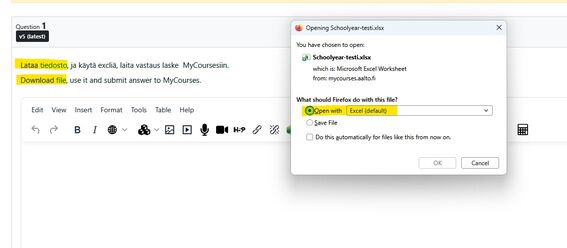
Using/downloading an Excel file and submitting it in the exam. Images ‘File download’ and ‘File submission’
- Open Excel or Word from the Windows icon at the bottom of the page or by searching, or
- Open the Excel or Word document in the exam by clicking the file name.
- Make the changes to the file and save it in the This PC menu.
- Return the file either by dragging it into the submission box or by selecting it from the list.
Switching the Excel language version
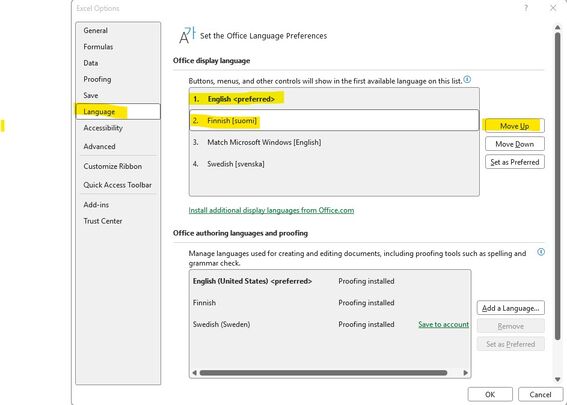
You can change the Excel language during the exam. Open Excel -> go to File -> Options -> Language -> select the language and move it to the top with Move up -> OK. Close Excel and reopen it.
Enabling Excel Solver
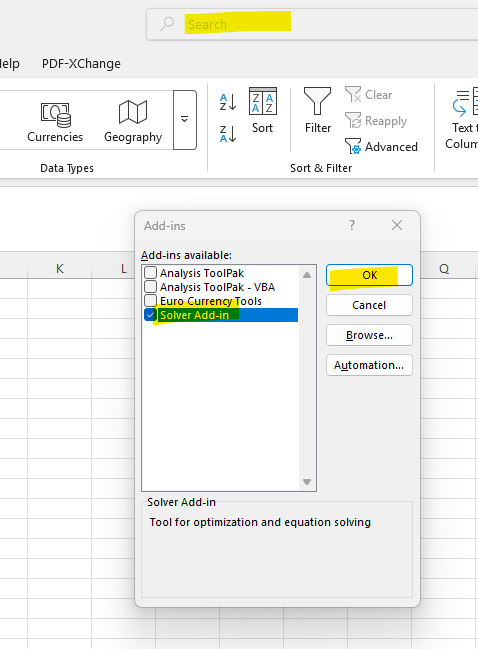
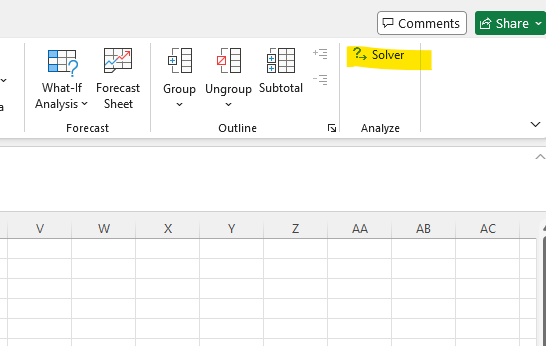
Open Excel -> type “Solver” in the search bar at the top -> select Add-ins -> check Solver Add-in -> OK. Solver will appear on the Data tab in the upper-right corner.

During the Exam: Instructions and Invigilation
A student can leave the Schoolyear exam environment at any time by selecting Exit. To return to the exam, they need a password, i.e., a proctor key. The proctor key must not be given to the student; it is entered on the student’s device by the teacher or invigilator. At the same time, record the time, the student’s name, and the reason in the invigilation log.
Tips for common technical issues
If the Return to attempt button on the quiz summary page doesn’t work, you can return to the exam via the question navigation in the top right corner.
If the exam gets stuck, click the Reconnect button at the bottom of the exam view.
If you can’t open a file by clicking it: leave the question (e.g., go back to the start of the exam), then return to the file and double‑click it with the left mouse button.
Symbols in Excel: if needed, use Insert > Symbol to add the correct character (e.g., the dollar sign), then copy and paste it into the file or enable the Finnish keyboard from settings on the virtual machine.
If a student closes the laptop lid during the exam, it may log them out of the quiz. In that case, reopen the quiz, and the system will require the Schoolyear Reveal proctor key, which can be found on the Schoolyear dashboard.
Support for troubleshooting on Schoolyear’s help site: Solving device issues – Schoolyear Help Center and Actions during an exam – Schoolyear Help Center.