






MyCourses workspace for thesis supervision

In short
- The workspace contains Turnitin submission boxes to check thesis drafts. Submissions are not stored in Turnitin's standard repository.
- The supervisor can also check their work in the Draft submission boxes.
- The scheduler in the workspace can be used to make appointments for thesis instruction.
Ordering a workspace
The supervisor/advisor (supervisor will be used to refer to both roles in the rest of these instructions) or the student on behalf of the supervisor can order the personal workspace by filling in this form: MyCourses workspace for thesis supervision.
- The form is also available in MyCourses after logging in: In the white ribbon on the top, go to Service links → Workspace for thesis supervision.
- The workspace will be created within three working days and is ready for use with Turnitin submission boxes and instructions.
- The life cycle of the workspace is 2.5 to 3 years. The closing date is the due date in the Turnitin submission boxes. A new workspace must be ordered well before the closing date if instructing students in their thesis work.
Purpose of this workspace
This ready-to-use workspace enables the thesis supervisor to
- receive different versions of thesis drafts,
- comment on the submitted drafts,
- get the Turnitin submission ID number that is necessary for doctoral theses to be submitted for pre-examination,
- obtain the Turnitin similarity report of all submissions, which is an aid to detect plagiarism, as well as
- obtain an estimate of whether artificial-intelligence-generated text has been used in the thesis text.
- The supervisor may use the Draft submissions boxes to get the similarity report for drafts of their own work to, say, check an article manuscript before sending it to a conference or a journal.

Students submit their theses here to
- get the Turnitin similarity report of the drafts of their thesis before getting their supervisor’s comments on the submitted version in order to
- improve the text following good academic writing practices and
- prevent unintentional plagiarism,
- get comments on their drafts, and
- get the Turnitin ID number of their doctoral thesis to be sent for pre-examination.
Turnitin usage is at its best when used for drafts as a natural part of the advising/supervising process (as a formative tool). This supports the learning of scientific writing and helps to prevent unintentional or intentional plagiarism. On receiving comments on a draft from the supervisor, the reworked draft is submitted in the next submission box so as not to overwrite the submission containing the comments.
Submissions made in the Draft / Luonnos submission boxes are not stored in Turnitin's comparison database, the Standard Repository. Also, submissions made in the submission box Version or pre-examination, meant for submission of doctoral theses, are not stored in the standard repository. In addition to the Turnitin submission boxes, the workspace has a scheduler with which appointments can be made to set up meetings between the supervisor and the student. The snapshot below shows what the workspace template looks like in MyCourses. The workspace template is copied and renamed for each supervisor.
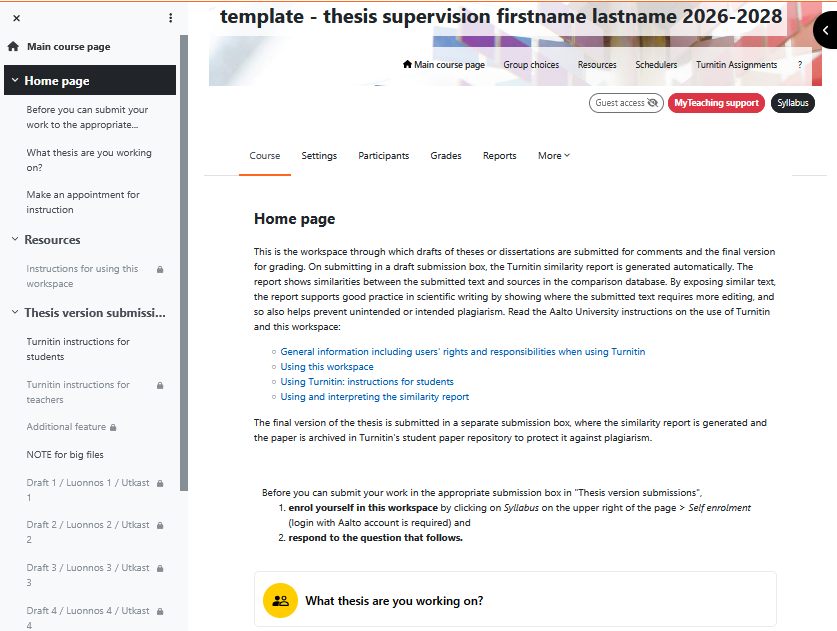
One last detail: A Turnitin submission box can stay open for a maximum of five years. Occasionally, there have been problems with Turnitin submission boxes having long submission times (the Due date is close to or equal to 5 years from the Start date). Hence, the life span of the thesis supervision workspace has been limited to three years. Although submissions can no longer be made in the workspace, the teacher has access to the workspace and the submissions in the Turnitin submission boxes in read-only mode. Comments made and grades given to the submission are visible to the teacher.
Instructions for using the workspace
- Give your students the link to the thesis supervision workspace.
- So that they can submit their work, ask them to first enrol themselves in the workspace and respond to the group-activity question: 'What thesis are you currently working on?'
- Agree with the student when you will comment on the submitted draft. They can use the Draft submission box to get the Turnitin similarity report to check their text before you give your comments on the draft.
- Agree on how many times you will comment on their drafts.
- After commenting on the draft, ask the student to submit the next possible draft in a different Draft submission box. In this way, all commented versions will be available for later use if needed and serve as documentation of the thesis supervision process.
- Note: Drafts can be submitted to the submission box as many times as desired, as long as the submission box is open. A student who makes a new submission for the first time in the submission box can submit their work three times within the first 24 hours, after which they must wait 24 hours for the next submission.
You can also check your own work in the Draft submission boxes to obtain the similarity report. Find the row with your name and click the Submit work icon on the right-hand side (point 3 in Turnitin instructions for students) to open a pop-up window where you can drag and drop the file to be checked.
Interpretation of Turnitin similarity report (interpretation differs between drafts and final version):
- The similarity report for drafts helps to assess the student's scientific writing skills. Use the report to guide the student on good scientific writing practices and correct other errors. In this way, you can prevent plagiarism before it happens.
- The similarity report for the final evaluated submission is available in MyStudies on the Salesforce platform. At this stage, the similarity report should be quite familiar. Go through the report to ensure your instructions have been followed and assess whether plagiarism has occurred. In the unfortunate situation where you suspect plagiarism, the investigation process proceeds as described in Good academic practice for studies at Aalto University.
- A doctoral thesis submitted for preliminary examination is processed and interpreted as for a final submission, even though it is not stored in Turnitin's standard repository.
Find your supervisor's workspace for thesis supervision as follows:
- Use MyCourses' search utility to look for it with the query 'thesis supervision first name last name' (use your supervisor's first name and last name) or
- ask your supervisor for a link to the thesis supervision workspace.
- If the workspace is not found and your supervisor does not have this workspace, ask them to acquire one or make a request on their behalf. Inform your supervisor in the latter case (see workspace ordering above).
To use your supervisor's thesis supervision workspace:
- Register yourself in the workspace: Syllabus → Self enrolment
- Answer the group-activity question "Which thesis are you working on?" You can now submit your work in Turnitin submission boxes.
- Agree with your supervisor when and how many times they will comment on your drafts.
You can use the Draft submission boxes to check your work and ensure that you follow good academic writing practices before receiving your supervisor’s comments on it. - See here for details on how to submit your work to a Turnitin submission box.
- After receiving your supervisor's comments on the draft, use a different Draft submission box to submit the next draft. This way, you will have a record of all the comments you have received on different drafts for future use, if necessary. This also serves as documentation of your writing process.
- Note! You can submit your work to the submission box as many times as you want, as long as the submission box is open. A new submission made for the first time to the submission box can be resubmitted three times within the first 24 hours, after which you must wait 24 hours before you can make the next submission.
Turnitin paper ID number
The Turnitin paper ID number is a unique number used to identify a submission made to Turnitin. This number appears in the submission box. It is also found through the submission information button available in Feedback Studio, the interface that opens when viewing the similarity report.
Why is the paper ID number required? There are three reasons why this ID is needed. The first is that a wrong version has been submitted to the submission box or the submission has been made in the wrong submission box, and this submission must be removed from Turnitin's database. For this, the paper ID together with the link to the submission box is required to remove the incorrect submission from the database.
The second reason only concerns doctoral students. The doctoral student must provide this number in the corresponding form when the doctoral thesis is submitted for pre-examination. The pre-examiners are given this number so that they know the work has been checked for breaches in academic integrity.
The third reason relates to disagreement in the assessment of the thesis between the student and the supervisor, or in the more serious situation of suspected plagiarism. The Turnitin ID number is required so that the investigating officer(s) and assessor(s) can examine the submission's similarity report as part of the investigation process of the suspected plagiarism case.
Using the scheduler
The Mycourses Scheduler activity on the homepage of the workspace, called Make an appointment for instruction, is intended for scheduling meetings for thesis instruction activities. The supervisor can use it or hide it from students:
- Using the scheduler: The supervisor can mark appointment times in the scheduler, from which students can choose a suitable time, or mark an already agreed meeting with the student (this is shared information about the booking).
- Appointments are visible in both the supervisor's and the student's MyCourses calendar. The MyCourses calendar can be exported to one's own Outlook or other calendar, such as Google Calendar.
- The supervisor can also write notes about the meeting that are visible to the student.
- Hiding the scheduler: Turn on EDIT MODE -> click the three dots next to the activity -> Hide.
Editing the workspace
The supervisor can edit the ready-to-use workspace like any other MyCourses workspace in the teacher's role. The workspace includes instructions in three languages: the user sees one language version according to the language they have selected for the interface. This must be considered if the instructions are edited.
Support and assistance for the use of digital teaching tools
We assist teachers with all questions related to the use of digital teaching tools and media tools. You can contact us through the service request form or book a personal half-hour consultation.