






MyCourses: Discussion forums

In short
- Discussion forums are intended for communication between the teacher and students as well as among the students themselves.
- The forum can be utilized for assignments and group work.
- Forums can be created for small groups.
- Notifications for messages from forums can be subscribed to your own email.
Announcements
Use the Announcements forum to send notifications to your course students. The Announcements is a one-way communication tool: students cannot reply to messages. The Announcements forum is ready-made in all workspaces, and its messages are visible only to course members. By default, the teacher's message will send a notification to participants' emails.
Sending a message step by step:
- Open the Main course page -> Announcements -> Add discussion topic.
- Fill in the topic in the subject field and the content in the message field.
- Under Advanced settings, you can choose whether you want to send forum post notifications with no editing-time delay. If the setting is not selected, you have 15 minutes to modify the message before it becomes visible to students and sends an email notification to recipients.
- Under Advanced settings, you can also attach a file to your message.
- You can also specify how long your message will remain visible.
- Send the message.
Another way:
- Click open the right sidebar to see the Latest announcements section. Click 'Add a new topic' and follow the instructions mentioned before.
General discussion
You can add Forums to the workspace for different activities or tasks. You can use Forums for general discussion about the course, instructions, questions about course content, assignments, group work, etc. Encourage your students to post their questions in the Forum rather than sending private messages. This approach will lessen the workload and decrease the volume of messages you receive. When a question about a particular topic is posted in the forum, both the question and your response will be visible to everyone.
Adding a Forum step-by-step:
- Open + Add activity or resource.
- Select Forum.
- Give the Forum a name and description, and specify its purpose.
- There are different types of discussion areas: for general use, for a single simple discussion, each person posts one discussion, question and answer forum, and blog-like format. You can find more detailed instructions on this behind the question mark icon in the Forum type setting.
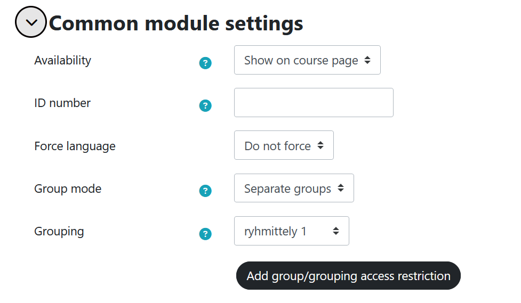
- The Forum can be used for small group discussions. Select Common module settings -> Group mode -> Visible or separate groups (see the question mark for more details). Also, select grouping, if you have it enabled.
- You can add an assessment to the discussion forum either for the entire discussion or for individual posts.
Read more:
Using forums for group messaging
If you have groups in your workspace, you can send a notification to all groups or just one group.
- Open the forum settings.
- In the general module settings section, select Group mode (visible or separate groups). Also select grouping if you have it enabled. More information about grouping can be found in Groups and groupings.
- When adding a new topic, you can choose whether to send the message to all participants or just one group.
Subscribing to discussion posts via email
If you want notifications about Forum posts to be sent to your own or participants' email, do as follows:
- Open the Forum.
- From the Subscriptions tab, select Forced, Optional, Auto, or Subscription disabled for forum post subscription. You can find more information about the options behind the question mark icon.
You can review subscriptions to discussion forums as a whole from the top icon under Forums. There you will see a list of all workspace forums. You can subscribe to all forums at once from the top right corner.
Subscribing to forum posts can be set from your own Preferences (right upper corner under your name or picture) -> Forum Preferences and Notification preferences. Students can also prevent email notifications from being sent to their own email from their own settings.
Read more:
- Moodle.org: Subscription and tracking

Private messages
You can also send and receive private messages in MyCourses. The messages open in the top menu next to your name. You can block message reception from your profile in the 'Message settings' section.
Read more: