






Zulip chat

In short
- Zulip-chat enables private conversation channels, user groups, and tagging topics in messages.
- Zulip-chat can facilitate the organization of students' questions and answers and supports group work.
- The most important feature of Zulip-chat is topics, which allow you to create order among a large number of messages. By using topics, you can focus on a specific discussion thread without losing the overall message flow.
- Zulip-chat is set up for a fixed period (for example, the duration of a course). Confidential matters should not be addressed on the platform.
- Zulip offers LaTeX support (eng).
Requesting a chat and using Zulip
The following instructions are for chat owners. Aalto staff and teachers can order the Zulip chat and be owners. Students and people outside of Aalto can also use Zulip.
- Order Zulip chat at https://zulip.aalto.fi/requests/
- You will receive an email within a few days. The email contains detailed instructions for the chat implementation.
- You can log in to the chat instance <chat-instance>.zulip.aalto.fi with your Aalto credentials. You will have the 'owner' role. When logging in for the first time with Aalto credentials, if a corresponding Zulip account was not found, you will be prompted to 'Register' and create an account. Once the Zulip account is created, it should be linked with your Aalto credentials.
- Define the main conversation settings (gear icon ⚙️ in the upper right corner) -> Manage organisation.
- The default interface language on Zulip is English. Each user can switch the interface language in their own profile settings at Personal Settings > Preferences > Language. Finnish is available as an option.
- The default interface language on Zulip is English. Each user can switch the interface language in their own profile settings at Personal Settings > Preferences > Language. Finnish is available as an option.
- Organisation settings / Video chat service
- Default set to 'None'. The default service provider (Jitsi) has not been evaluated or approved at Aalto.
- Integration with Aalto Zoom may come later.
- Organisation permissions / Invitation settings
- DO NOT set both 'Organizational Permissions→ Invitations = not required' and ‘Authentication methods→Email = enabled' simultaneously.
- You can enable registration with the Aalto credentials or any email address. Anyone from Aalto can register OR you can make the chat invite-only. Unfortunately, you cannot combine settings so that 'anyone with Aalto credentials can register without an invite, but email registration requires an invite' due to Zulip's limitation.
- If you only allow Aalto login (see 'Authentication methods'): The invitation requirement at Organisation Permissions settings can be set to No, so the box can remain unchecked. Still, anyone with Aalto credentials can join.
- When including external chat members: users outside Aalto should be allowed to register via email and invitation. Set so that only admin can send invites and allow "Email" in addition to the defaul "AzureAD" in "Authentication Methods"
- You can appoint additional administrators/owners (e.g. teaching assistants). Do it as follows:
- Ask them to log in to Zulip.
- Change their role Manage organisation -> Users.
As a chat owner or administrator, you are responsible for ensuring that the settings are correct. Make sure that the administrators/owners you appoint are also aware of these.
Settings not mentioned here can be configured as you see fit. However, be careful not to change settings that may compromise the service quality or the security of user data.

Commonly used settings
| Organization permissions / Who can access user email addresses | Set this to Admins only or Nobody |
| Organization permissions / Who can add bots | Set to Admins only Consult Zulip support before deploying any bots |
| Authentication methods |
AzureAD
|
| Users |
|
| Message settings | You can allow messages to be edited for a longer period using Settings → Organisation Settings. It is often useful to have a longer editing time window. |
Practical hints for instance owners
Zulip is a chat platform where the way the conversation is organized makes a difference. Here is a collection of suggestions collected from teachers who have been using Zulip during the pilot phase.
You can share it straight as text in your course workspace, along with instructions on how to use Zulip. MyCourses also has a Communications button, that can be enabled from your course's main menu → More → Communication. Select Custom link as the Provider and then the link to your Zulip realm as the Custom link URL. This will add your Zulip realm to the button Course discussion, visible at the bottom right corner of your course pages. Note that you must create your Zulip realm beforehand via zulip.aalto.fi/requests.
- Topics (i.e. the subject for a message thread) is the key feature of Zulip and its point is to keep a large amount of information organized by themes. If you don’t want to use Topics or it doesn’t match your flow, you might want to evaluate whether there is another chat platform that suits your needs better.
- Read about the Participating in a Zulip chat to see the importance of topics. The guide also describes the three ways to use Zulip, and how we typically manage the flood of information in practice.
- Give those guidelines to your students, as it is important that they understand how the chat is structured and how they can reply to topics and nagivate streams.
- Consider why you want a course chat.
- Do you want a way to chat and ask questions/discuss in a lower-threshold platform than forum posts? Then this could be good.
- Do you want a Q&A forum or an announcements board? Then this may work, but MyCourses also has good options for this, such as the Forum activity.
- Do you want a place for students groups to be able to chat among small groups? Zulip allows the creation of user groups and of private streams that can be used for this purpose, but MyCourses and Zoom might also be good alternatives.
- Create your channels (“streams”) before your students join, and make the important ones default streams, so that everyone will be subscribed. This can be done under Manage organization> Default channels.
- Some common streams you might want are #general, #announcements, #questions. Some people have one stream per homework, exam, theme, and/or task.
- The main point of streams is to be able to independently filter, mute, and subscribe to notifications. For example, it might be useful to view all questions about one homework in order, or request email notifications from the #announcements stream.
You can create user groups (teams) with a certain name. The group can be @-mentioned together, or added to a stream.
Create user groups clicking the gear icon in the upper right corner of the screen > Group settings.
If you want a Q&A forum, make a stream called #questions, or smaller streams for specific topics, and direct students there.
- You can click the check mark by a topic to mark it as resolved.
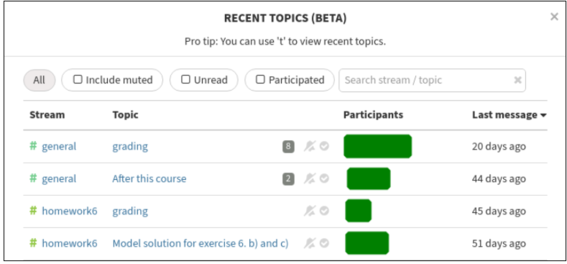
- Remind students to make a new topic for each new question. This enables good follow-up via “Recent topics”.
- If students don’t make a new topic or a topic goes off-track, edit the message and change the topic (change topic for “this message and all later messages”). This way, you keep questions organized, findable, and trackable.
- If you don’t want to be answering questions in private message, make a clear policy on either reposting the questions publicly yourself (without identification), or directing the students to repost in the public stream themselves.
If you want to limit students's permissions on the chat instance, you can consider disabling:
- Adding streams, adding others to streams (if you want people to only ask and not make their own groups).
- Disable private messages (if you really don’t want personal requests for help).
- Adding bots, adding custom emojis.
- Seeing email addresses.
- Changing username.
You can use the /poll [TITLE] command to make lightweight non-anonymous polls.
Yes, you should never be doing that manually. See Zulip's instructions on how to add users to a channel here Subscribe users to a channel | Zulip help center
Well, you don’t have to when replying. And this is sort of a natural trade-off needed to keep things organized and searchable: you have to think before you send. Most people consider this a worthy trade-off. Note that you can change the topic of messages after the fact, just talk and organize later as needed.
Participating in a Zulip chat
This guide explains how to use Zulip as a chat member, which is the usual role for students and other people who have no chat admin permissions.
Streams and Topics
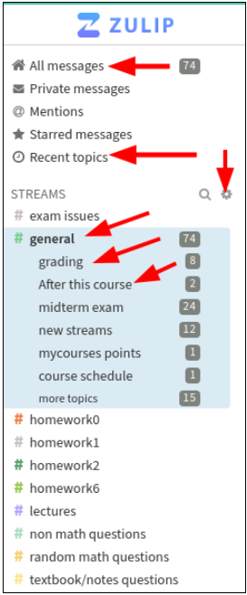
In Zulip, discussions are organized in streams, which are further divided into topics. In Zulip's main view, you will find the left sidebar, as illustrated below, where you can you narrow down the messages that are displayed.
You can select:
- All messages to see everything that is being posted per stream.
- Recent topics to see which topics have new information.
-
Different streams and topics to narrow down to a specific stream or topic.
Message Pane
-
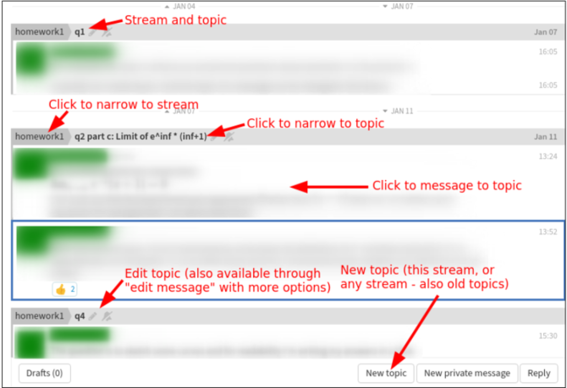
In the middle of your screen, you have the Message Pane, where the messages are shown. You can click on various places to narrow your view to one conversation or reply.
Selecting visible topics
- Not all streams are visible in the sidebar by default.
- Click the gear icon next to Streams in the main navigation sidebar in order to see all available streams and select which ones you want to participate in. It is good to occasionally check this menu in case new streams are added.
Using Zulip efficiently
How to ask a question
Seems obvious, doesn’t it? However, in Zulip you get the best and quickest answers by helping to keep things organized too. These recommendations are mainly for Q&A-forum type chats.
When you have a question, always search history to see if it has already been asked first. If it has been asked, click on the topic name. You will narrow your view to see that entire conversation.
If your question isn’t answered yet, but is a follow up to an existing topic, click on a message in that topic. Then, when you ask, it will go to that same topic as a follow-up, and anyone else can narrow to see the whole history. Unlike other chats, your message will not get lost, and people will both see that it is new and can see the history of that thread.
Make a new topic
Your course's instructor can say what the threshold for “new topic” is. Maybe they would have one topic per question pre-created or something similar.
If you don’t find anything relevant to follow up on, make a new topic following the steps below:
- Select the stream you want to post to.
- Click New topic ( + button next to the channel name in the left navigation bar).
- Enter the topic name down below: a few words, like an email subject. For example, week 1 question 3, integrals of complex functions, exam preparation.
-
Enter your message and send.
It is possible to split or join topics by going to “edit message”, so you don't have to worry about miscategorizing. By being organized, you keep the chat flow agile and make sure nothing important will pass unnoticed.
Other tips
- You can format your messages using Zulip markdown.
- Are you annoyed by having to enter a topic every time you send a message? Remember, when replying you don’t need to. But otherwise, it’s a trade-off: keep it organized or be less searchable. Most of users are clear that keeping organized is worth the searchability. But don’t worry too much: if you happen to get things wrong, others can re-organize topics afterwards.
- “Mute a stream” (or topic) is useful when you want to stay subscribed but not be notified of messages by default. You can still find it if you click through the sidebar.
- You can also request notifications for everything in a certain stream. This could be good for announcement streams, or your particular projects.
-
The desktop and mobile apps can support multiple organizations.
Apps
There are reasonable applications for most desktop and mobile operating systems. These don’t send your data to any other services.
The mobile applications work, but may not be the best for following a large number of courses simultaneously as switching between organizations on mobile might be inconvenient.
Unfortunately, Aalto does not currently support mobile notifications for Zulip.