






Zoom video integration with MyCourses
Zoom is an online video service that enables real-time lectures and lecture recording. Zoom can be used for mass lectures, small group sessions, and one-on-one meetings. Participants can use video, audio, screen sharing, and chat.
Loading table of contents

Shortly
Zoom is an online video service that can be used for:
- real-time online lectures
- recording lectures
- exercises
- personal student counseling and guidance
- small group work.
Requirements
Before adding a Zoom activity to your course workspace, ensure that you have activated Zoom at https://aalto.zoom.us/ and logged in using your Aalto credentials.
Please review these steps in the Zoom Quick Guide: https://www.aalto.fi/en/services/zoom-quick-guide
Adding a Zoom activity to the course workspace
- Open your MyCourses workspace and enable editing → + Add activity or resource → select Zoom meeting -> Add.
- Add a title to be displayed to students, and a description if desired.
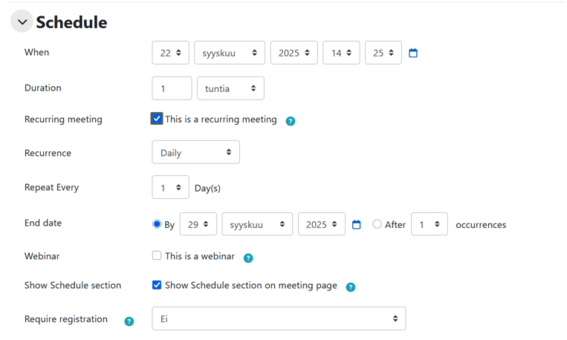
- Set the time: month, day, year, hour, minutes, and duration of the session.
- You can create a recurring session, e.g., weekly at the same time, or a continuous session without an end time, always open. Sessions that are continuously open do not appear on the calendar.
- The webinar option is available only for previously authorized Zoom accounts.
- Breakout rooms: You can pre-create small group rooms and add users to them (after the word Rooms there is a black circle which allows rooms to be added).
- Password: Setting a password requires users to enter it before joining. In a Zoom activity added to MyCourses, students do not need to enter a password, but it needs to be set in the settings.
- You can enable the waiting room, requiring students to be admitted to the session.
- Select whether the host’s video is on or off when joining the session.
- Select whether students' videos are on or off when joining the session.
- You can allow joining before the host, so students can join the session before the host, or when the host is unavailable to attend.
- You can add an alternative host. Enter the email of the alternate host (firstname.lastname@aalto.fi). An alternative host can start the session if you are unavailable. This user will receive an email notification that they have been added as an alternative host, including a link to start the session.
- When you're finished, click Save and display. If you have scheduled a one-time or recurring session, it will appear in the MyCourses calendar on the course's front page. Continuous sessions do not appear on the calendar.
- The session can be recorded. Recording is enabled when the session starts. Inform participants about the recording.
- You can evaluate sessions by setting up grading in the settings. Grading creates a column in the Gradebook.

Students joining Zoom
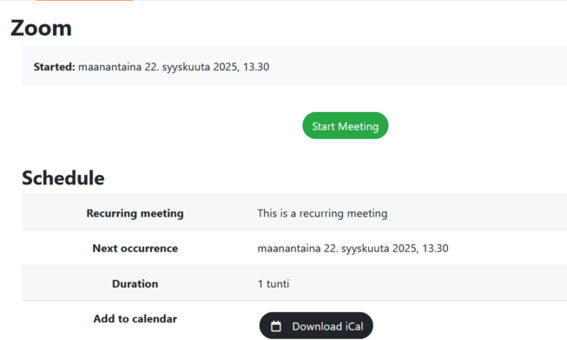
Students automatically gain access to the course's Zoom by logging into the course workspace on MyCourses. They can join the session by clicking the Start meeting button.
If students are using Zoom for the first time, we recommend that they log into aalto.zoom.us with their Aalto credentials by following the instructions in the Zoom Quick Guide.