






MyCourses: Peer review tools

In short
- Peer review tools are designed for students to evaluate each other’s work.
- A student submits a text that another student assesses based on criteria.
- FeedbackFruits enables group work.
- The teacher's role in the evaluation is primarily minimal.
FeedbackFruits
FeedbackFruits is an external peer assessment tool integrated into the MyCourses environment, supporting group use and transferring grades to MyCourses.
- A student submits an assignment, which is then assessed by one or more students based on criteria set by the teacher.
- Groups can submit and evaluate assignments.
- The assessment methods include commenting, grading criteria, and scales. Self-assessment is also possible.
- Anonymous submission and evaluation of assignments are easily enabled.
- Points can be awarded for submitting an assignment, providing feedback, and reading received feedback.
- By default, reviewers are automatically chosen to evaluate other assignments, but manual allocation is also possible.
- FeedbackFruits offers chat-based support services that teachers can use directly through the tool.
Adding FeedbackFruits activity step-by-step
- Add the FeedbackFruits activity from a section page via the + Add an Activity or resource button.
- Provide a name and description for the activity.
- In the Evaluation section, allow FeedbackFruits to add grades to the gradebook.
- Save.
FeedbackFruits opens in a new window where additional settings are configured. Choose Start from scratch -> Peer review -> Copy and Edit. - Edit settings for Submissions, Given reviews, and Received reviews. You can choose anonymity for all sections. Self-assessment is also available.
- Determine the number of assignments to be reviewed, set the review dates, and specify when students will be able to access their feedback.
- Create criteria for peer review in the section Given reviews -> Feedback criteria.
- In the Grading section, set the percentage contribution to the overall grade for submission, review, and assessment of the review. Indicate the percentage for submission, giving feedback, reading feedback from reviewers, and self-assessment. Some of these can be 0%. Grades can be published as percentages or on a Pass/Fail scale.
- Save with the Save button in the top right corner.
- Test and ensure all settings are correct.
By default, students are assigned submissions to review as they are submitted, taking into account the set dates. This way, each student who makes a submission is assigned a reviewer as assignments are submitted.
You can track students' progress and interaction using FeedbackFruits's reporting tools. When the activity closes, you can assess student performance or provide feedback via MyCourses.
Settings can be modified using the Edit button in the top right corner.
FeedbackFruits should be copied as templates
Templates: You can use existing FeedbackFruits activities as a template for new tasks. When you want to create a new FeedbackFruits activity, click the Copy from existing button in the top right corner. This will open a menu where you can choose your preferred template. In the new FeedbackFruits activity, you can change all settings according to your needs.
Note! Do not use the Copy function in MyCourses to create a new FeedbackFruits activity. This method does not work! Remember to use only templates.
Workshop activity
A Workshop is a peer assessment activity in MyCourses where submissions and assessments are always completed individually; group functionalities are not supported. If you want to use the Workshop for group work, have one group member submit the assignment on behalf of others. The teacher can then add the grades for the other group members manually.
Features of the Workshop activity:
- Students submit assignments (text or images) that are assessed by other students based on predefined criteria.
- All students move through the phases according to the same schedule. Dates can be set in advance, or the teacher can manually switch phases.
- Self-assessment is possible.
- The grade of a workshop activity consists of two parts: the points for the submitted assignment and the points for the assessment, which by default are 80/20 points. These can be changed, e.g., to 5 points for both the assignment and the assessment, or to 5 points for the assignment and 1 point for the assessment.
- If the student assesses two assignments or less, the workshop activity doesn’t use its calculation mechanism in the grading at all (if all criteria have equal weight, e.g. 1, or all criteria in the rubric are on the same scale).
- Reviewers can be allocated either manually or automatically.
- The teacher can apply various methods for calculating grades.
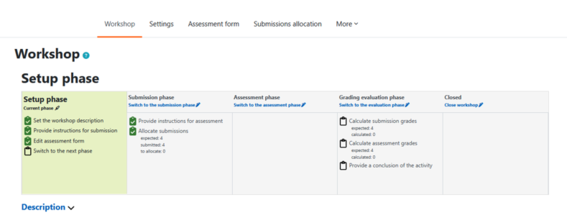
Phases in Workshop activity
- Setup phase (for the teacher):
- Set the workshop description.
- Provide instructions for submission.
- Edit assessment form.
- Submission phase:
- The students submit their assignments according to the schedule provided.
- Allocate the submissions for peer review either manually or randomly (automatic allocation).
- Assessment phase:
- Students assess the assignment submissions allocated to them.
- By default, students can see whose assignment they are assessing, but not who has assessed their own assignment. The assessment can also be made completely anonymous by doing the following: go to the Add tab → select Permissions -> under Workshop activity find View author names -> remove the Student role. With this setting, students will not be able to see whose assignment they are assessing.
- Grading evaluation phase:
- The system calculates final grades based on submitted work and assessments.
- You can provide feedback to authors and reviewers.
- You can review the given assessments and manually override them if necessary.
- Closed phase:
- Note: Students will see the assessments and grades only after the Workshop is closed.
- Anonymous grading: to hide authors' names in Workshop go to More tab -> permissions. Go to Activity: Workshop -> remove the student from View author names. The reviewer is anonymous by default.
- Moodle org: Workshop Activity including a video, on how to use Workshop
- Grading strategies: https://docs.moodle.org/403/en/Workshop_grading_strategie
The four different assessment methods in Workshop
Accumulative (default)
- Students give each other points and comment on each other's work.
- The grades for submission and assessment depend on the points given by other students.
Comments
- Students receive full points for submission just by submitting their work.
- Students receive full points for the assessment if they evaluate at least one submission.
- TIP: This assessment strategy is useful in process writing, where the submitted text can be commented on frequently. Close the Workshop so students can see the feedback they have received, then return to the submission phase so they can resubmit the assignment. The assessment strategy can be changed later, e.g., to the Accumulative strategy.
Number of errors
- Students indicate whether each criterion is met or not (e.g., good/bad or yes/no).
- Students can add comments for each criterion.
- Students receive full points for the submission just by submitting it.
- The grade for the assessment depends on the points given by other students.
Rubric
- Students use a rubric for assessment.
- The grade for the submission depends on the points given by other students.
- Students receive full points for the assessment if they evaluate fewer than two students and all criteria in the rubric are of equal weight.
Collaborative Writing
Etherpad Lite
- is a real-time collaborative writing tool
- works like Google Docs and Word files shared on OneDrive, but it has a simplified structure.
Note! This activity is open to guests (users who are not logged in). Guests can read or, if allowed, also write on the pad. In the Etherpad settings, you can restrict access only to your students or a group (see also Restrict Access to an Activity or Resource).
OU Wiki and Wiki (current situation should be checked)
Tools suitable for collaborative writing where students can create Wiki-style article pages. It is possible to track the editing history of the articles. It is based on an HTML editor and includes integrated comments on pages, headings, and individual words.
More information:
OU wiki for multilingual glossaries
Discussion Forums
The forum activity can be used for peer review functions, and it allows for group usage. Discussions can be visible to all groups (visible groups) or only to members of one's own group (separate groups). You can message all course participants or only a specific group.
In visible groups, all students can see each other's messages, names, and group work, but the discussion is limited to their own group. However, the teacher can see all discussions regardless of the selected group mode. The teacher can add a comment for all groups by first selecting 'All participants' and then 'Add a new discussion topic,' and can set a common discussion area for all discussions if needed.
Read more:
- Moodle.org: Using Forum
- Tip of the Week -blogs: Using MyCourses discussion forum as a peer assessment and feedback tool