How to connect to a network drive in Windows workstations
1) The Favorites-/Quick access function
2) Adding a network location. Once set, network locations are easy to copy to another computer by an administrator: switching to a new PC is thus easier.
Mapping network drive as a drive letter is no longer recommended as the drive letters slow the computer considerably.
Using network drives requires a connection with an Aalto University network (wireless aalto network, wired aalto workstation network or VPN).
For information security reasons, always use the complete directory path when you make links.
- Correct: \\work.org.aalto.fi\COMMON\public
- Incorrect:\\work\COMMON\public
Quick access function in Windows
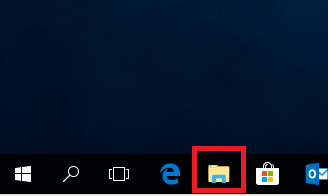
1. Open File Explorer (you can also use the keyboard shortcut [win]+e).
2. Type the desired network path on the address line in File Explorer, and press Enter.

3. Select ... and Pin to Quick access
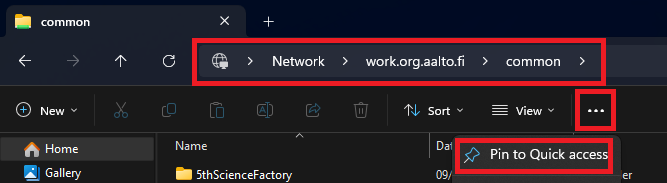
4. The addition of the link is ready when the name of the folder appears below the Quick access header.
Adding a network location
1. Open File Explorer (you can also use the keyboard shortcut [win]+e).
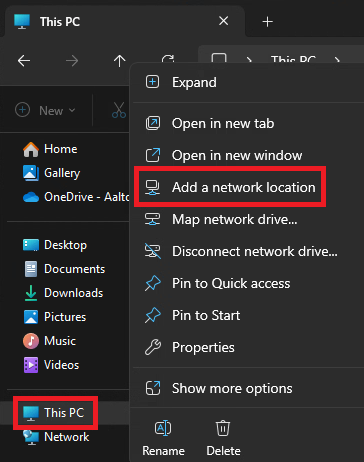
2. To add a network location, right click This PC on Windows File Explorer
3. Choose Add a network location
4. Follow the instructions on screen and enter the network directory address when asked. For example, \\work.org.aalto.fi\COMMON\organisaatio
5. Enter a name that is easy for you to understand for the location. For example, Aalto organisation.
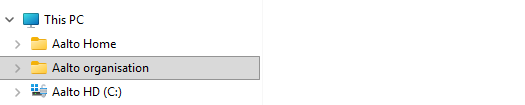
6. After completing the setup you'll find the network location added to File Explorer.