






Multifactor Authentication (MFA, 2FA, Authenticator)
Why we use MFA at Aalto and instructions for starting to use MFA.
and/or
Most students use their phones to store passkeys.
For employees it is advisable to get a Yubikey from Dustin via IT Orders: search for "Yubikey 5C NFC (USB-C)".
Note Once you register a passkey you cannot log in any other way. This means that you must be able to use a passkey for login on both mobile and desktop devices.
To start using passkeys you need to first register the passkey.
To register a passkey go to Aalto Login passkey registration with your browser.
You can log in either with your Aalto password or suomi.fi authentication.

In the registration view you can add new keys and delete old ones. Passkeys with the label "Passwordless" can be used for passwordless login.
Some authenticators do not implement User Verification correctly. They may require a password even after you have logged in with the passkey.
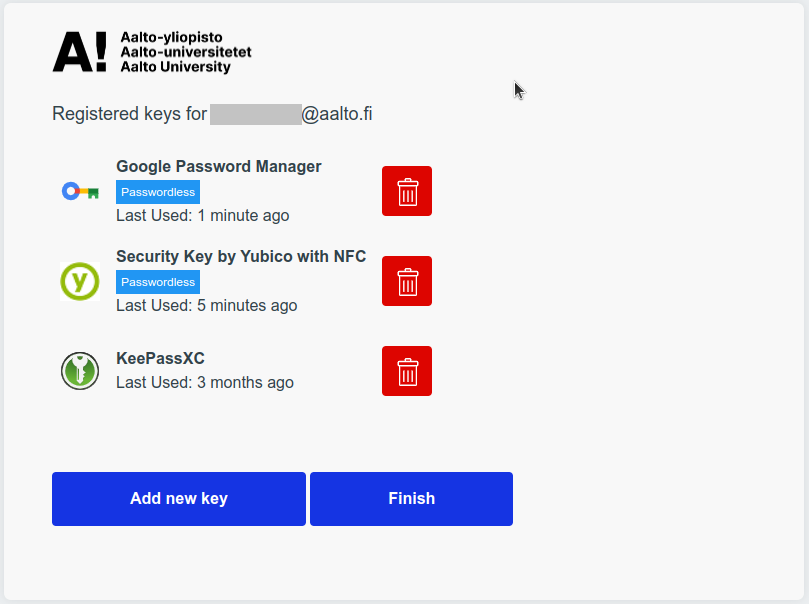
After you have registered a passkey, you cannot log in with a password anymore.
If you lose your passkey(s) you can log in to passkey registration with suomi.fi authentication and remove all your registered passkeys. If you cannot use suomi.fi login contact IT Service Desk and request your passkeys to be deleted.
After your existing passkeys have been deleted you can log in with a password again to register new ones.
The majority of Android phones come with Google Password Manager by default while iPhones use Apple Passwords. Both are fine and can be used.
Some passkey providers do not do User Verification (biometrics or PIN code) reliably. When using those passkey providers you will be asked for your password after logging in with a passkey.
The recommended passkey provider on Android is KeePassDX for the following reasons:
Why we use MFA at Aalto and instructions for starting to use MFA.

Contact IT End User Support for help or information on Aalto University IT. You can visit the service desk during opening hours or ask for help by email, telephone or chat.