






AI in Aalto
Learn how Aalto University provides internal productized AI services to staff and students.
Captions display speech as text in the spoken language. Translated subtitles display it in another language. A transcript is a separate written record; it is not the same as temporary live captions.

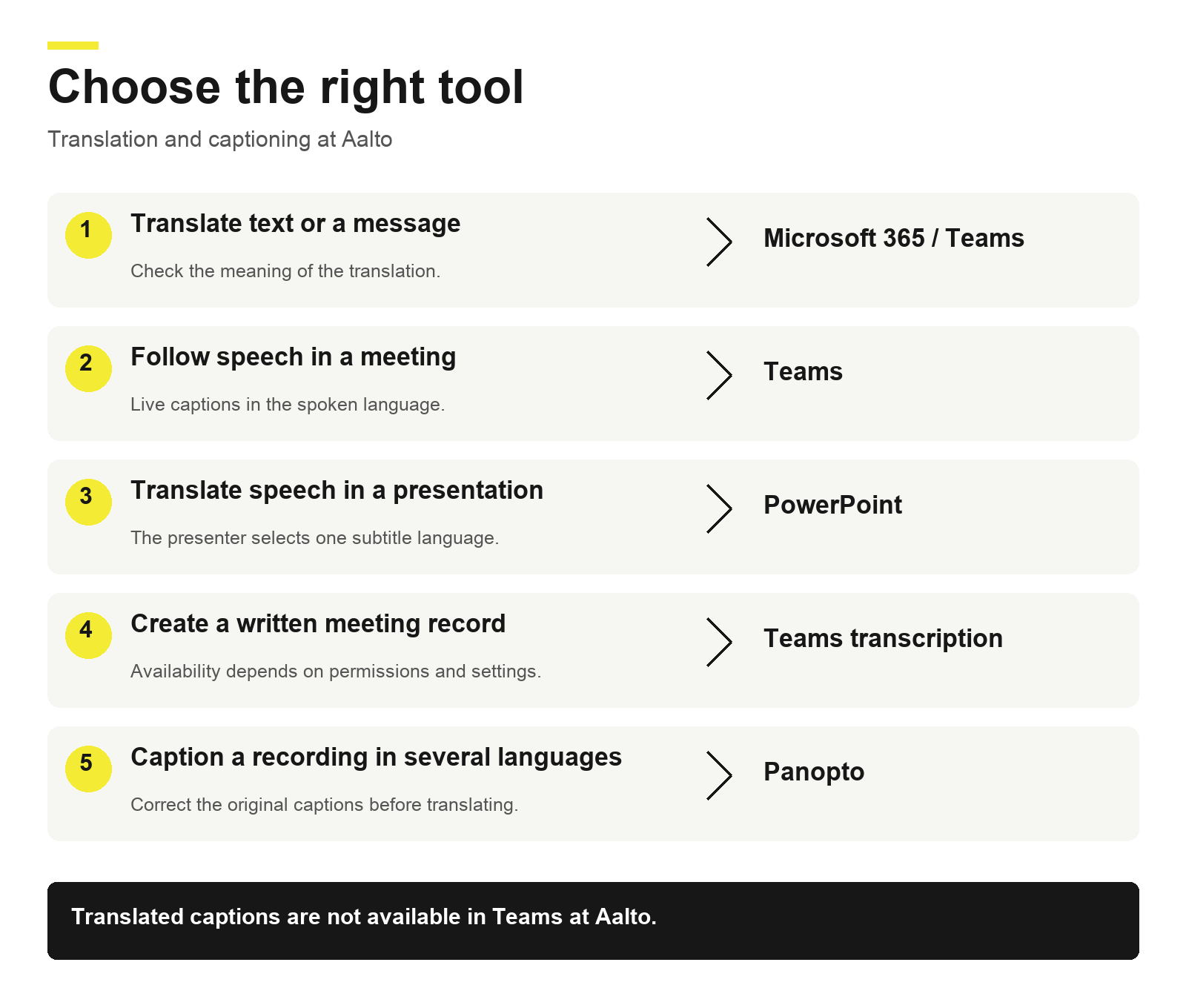
Use the overview to find the tool for your task. The same information is provided in the text above.
In supported versions of Word, PowerPoint and other Microsoft 365 applications, select the text and look for Review → Translate. Select the source and target languages, check the result and insert it where the application supports this. Outlook and other applications may use different menus. Features and language support vary by application, device and version.
Set the correct proofing language when checking spelling and grammar. Review suggestions carefully, especially for names and specialist terminology.
Open the message's More options (…) → Translate. Use the message options to view the original again. Translation preferences are available in Teams settings; the location and automatic translation options vary by version.
In a meeting, select More actions (…) → Language and speech → Show live captions. Check the spoken language in caption settings. Each participant can display captions for themselves.
Live captions are not saved. Start transcription separately if you need a record after the meeting.
Translated captions are not available in Aalto Teams meetings. Use PowerPoint for translated subtitles during live presentations and Panopto for translated captions in recordings.
Microsoft: Teams live captions and translated captions
In supported PowerPoint versions, open Slide Show → Subtitle Settings. Select the spoken language and the subtitle language, then enable subtitles. The presenter selects one displayed subtitle language for the presentation. Test the microphone, language pair and display before the session.
The former Present Live / Live Presentations feature in PowerPoint for the web has been discontinued. It must not be confused with PowerPoint Live in Teams. Do not use old Present Live instructions for participant-selected translated subtitles.
Microsoft: PowerPoint captions and subtitles2. AI-supported spell checking and translation for texts, documents and messages
Where available, select More actions (…) → Language and speech → Start transcription. Confirm the spoken language. Transcription availability and access depend on your meeting role, the organiser's settings and Aalto's policies.
Tell participants before starting transcription. After the meeting, authorised users can access the transcript through the meeting recap. Organisers can edit the transcript and captions of recordings stored in OneDrive or SharePoint. Check access permissions before sharing.
Microsoft: Start and manage Teams transcription · Microsoft: Edit a meeting transcript
Use Panopto for recorded teaching materials that need corrected captions and several subtitle languages. Translated captions are available at Aalto.
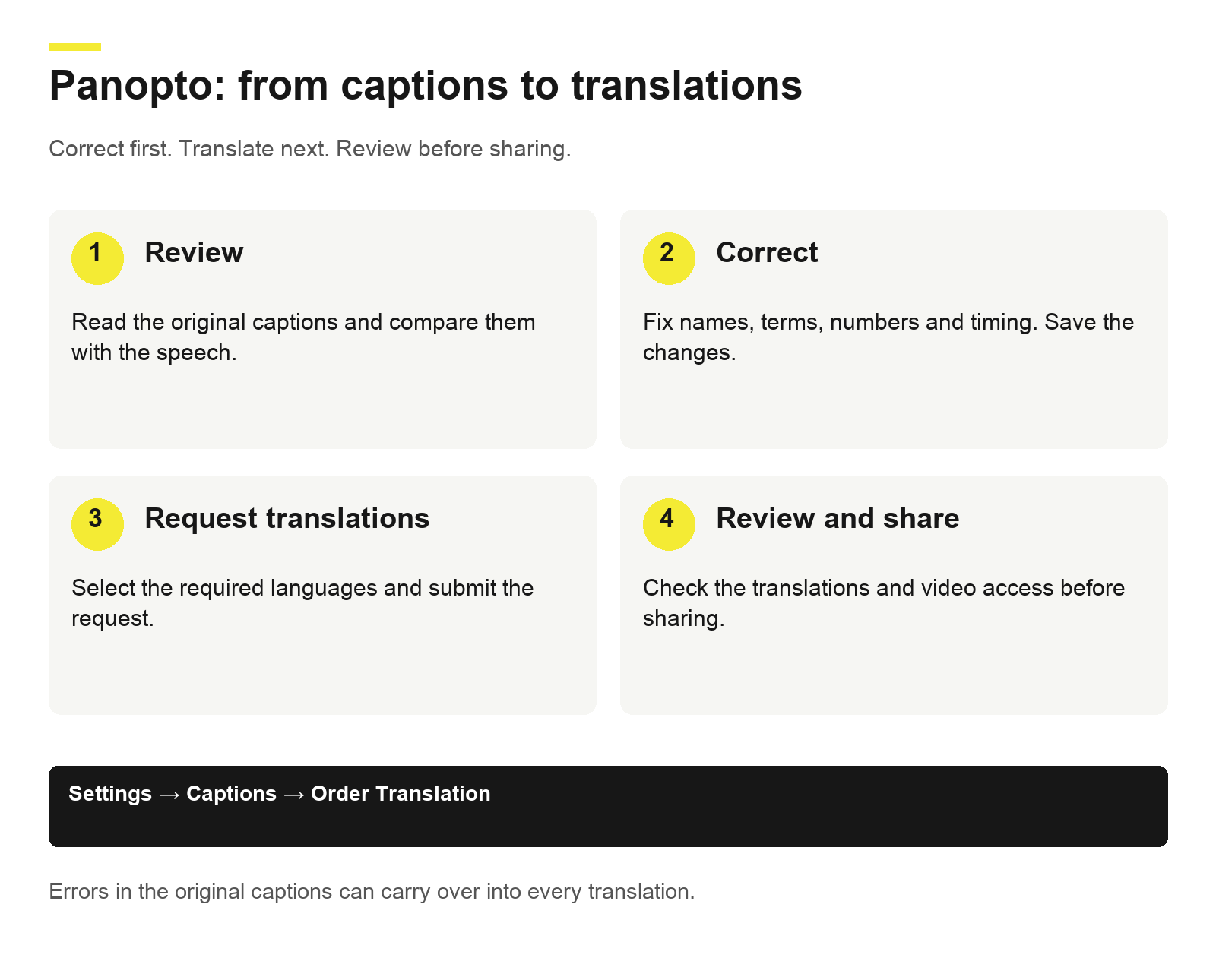
Machine translation can carry errors from the source captions into every translation. Editing support helps improve quality; it does not guarantee accuracy.

Open Slide Show → Subtitle Settings. Spoken Language is the language you speak; Subtitle Language is the language displayed to your audience. This example shows Finnish speech and English subtitles.
The screenshot shows PowerPoint for Mac with an English interface.

Review the original captions, correct errors, request translations and review the results before sharing.

Open the video settings and select Captions. Find Order Translation below the caption upload section.

Check Source Language and select the Target Language(s). In this example, English is translated into Finnish. Submit the request with Order Translation.
Aalto: Guidelines for using generative AI · Aalto: Accessibility guidelines for captions
Contact IT Services for access and technical problems. For teaching practices, see the multilingual teaching guidance below. Product features change: use the linked service instructions to check the current steps.

Learn how Aalto University provides internal productized AI services to staff and students.
A chat-based application powered by the same language models as ChatGPT

A landing page for teachers to help them find information, services, and support related to teaching and learning.

Aalto University aims to deliver a multilingual and inclusive educational experience for students as well as for all who take care of teaching duties. Teaching at Aalto is organised in Finnish, Swedish and English. This page gives you ideas for implementing teaching multilingually, information about language-aware pedagogy, and guidelines for using the available digital services that support multilingual teaching.

Digital tools supported by Aalto for teaching and learning