






Windows 11 in IT Classrooms – Changes to how files are saved
The operating systems of Windows computers in IT classrooms will be updated to Windows 11 during 2026. Updates have already been completed in 35% of classrooms.
The update to Windows 11 will affect how you save your files.
The update to Windows 11 will affect how you save your files.
When using a Windows machine in the IT classroom, save your files to:
Note: When saving files to Microsoft OneDrive, remember to check before logging out of the IT classroom computer that the file has been synchronized.
Check that your OneDrive files are synced between OneDrive and the computer in the IT classroom
Locate the OneDrive icon in your Windows system tray or in File Explorer's address bar
- A cloud icon in your Windows system tray at the bottom right corner of your screen. If it's not visible, click the "^" to see hidden icons.

- A OneDrive status icon in File Explorer's address bar.
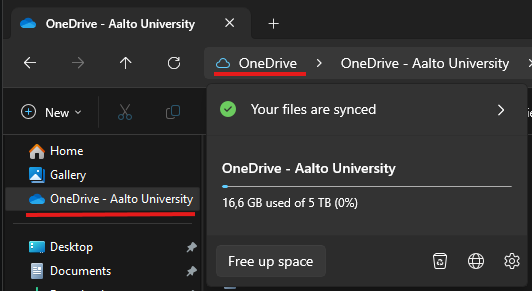
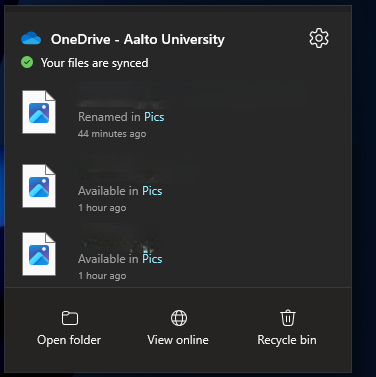
- Check Sync Status: Click the OneDrive cloud icon. A window will pop up. Ensure it says 'Your files are synced' with a green check mark.

Read more news

New guidance on the use of AI in thesis work
New guidance on AI in bachelor’s and master’s theses: students must agree AI use in advance with their supervisor and document how it was used.
Mind & Study - toolbox for being well in studies (3cr) coming up
Popular course "Mind & Study - toolbox for being well in studies" will be organized in Finnish, English and Swedish in the 2nd and 4th period!
Integrating Kielibuusti’s language PSP into Aalto University’s study and guidance practices
Aalto University has adopted the language PSP tool developed in the Kielibuusti project for study guidance. At Aalto University, the tool has been tailored to guide Finnish-language studies and is known as “Plan your Finnish language studies” (Suomi‑HOPS).
BIZ Exchange infos in Autumn
It is again time to start preparing for the January exchange application round for the academic year 2027–2028.Come and hear more about the application process at the autumn exchange info sessions!