Multilingual glossaries
In multilingual courses, it can be beneficial to give students a chance to learn about field-specific vocabulary in different languages, for example, to standardize the use of the correct terms in the course and to encourage international students to learn about central concepts in Finland's national languages. Multilingual glossary activities can be useful to teach specialized terminology and building them is a great opportunity for students to learn in an active and collaborative manner.
Read more about teachers' experiences with field-specific multilingual terminology in their courses: Students learning field-specific terminology through glossary tasks | Aalto University
MyCourses offers some alternatives to support that purpose. Below you will find some tips on how to use three different activities for creating a multilingual glossary that allow students to learn by entering their own contributions.
| Database | Glossary | OU Wiki | |
| Supports students’ entries | Yes | Yes | Yes, multiple students can edit the same entry |
| Teacher can edit student entry | Yes | Yes | Yes |
| Supports posting upon approval from teacher | Yes | Yes | No |
| Supports images and links | Yes | Yes | Yes |
| Supports comments | No | No | Yes, annotation by teachers |
| Can be graded | Yes | Yes | Yes |
| Can be a group activity | Requires testing | No | Yes, separate wikis per group |
Database activity
Useful to create structured, standardized entries using custom fields (e.g., term, definition/description, translation, image, URL). Entries can be tagged for categorization.
- Entry creation and approval
- The teacher can create a database activity by adding different types of fields for the entries (e.g. short text, image, file, URL, etc).
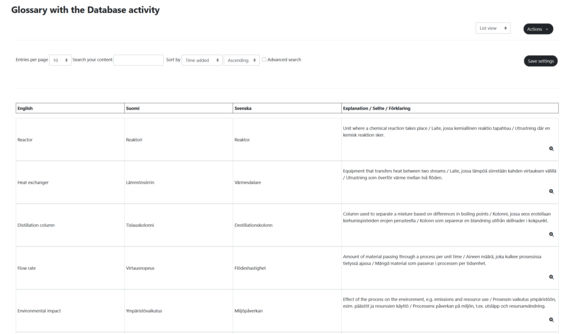
- It is also possible to use "Presets" as a starting. MyCourses has a Database preset called "multilingual glossary", that can be used as an example or a starting point for building your own activity.
- Students can add entries and teachers can edit and optionally require approval before entries are visible.
- As a teacher, it might useful to set a "Read-only from" deadline to review and approve the entries all at once, as filtering by entry status is not possible.
- Ratings and grading
- Enable ratings in the activity’s Ratings section (choose aggregate type and whether grade format will be scale/points). Ratings feed into the gradebook.
- If students should rate entries, ensure the Student role has the “Rate entries” capability (Activity → More → Permissions), in addition to enabling Ratings.
-
Display and navigation
- Views: list view (multiple entries) and single view (one entry at a time). Single view shows the author and, if enabled, the rating control.
- This activity has also a search field, which is useful when there is a large number of entries.
-
Tags can be used for categorization and navigation; consider defining a controlled tag set to keep them consistent.
- Example setup walkthrough video: https://www.youtube.com/watch?v=e53PNZOHTSU


Glossary activity
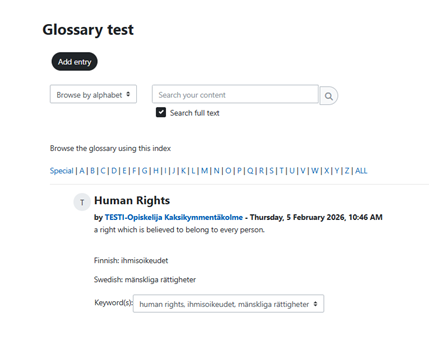
The Glossary activity is a straight-forward way of building a terminology bank, that can be used multilingually according to the teachers' instructions. This activity is relatively easy to set up and navigate.
- Automatic linking of terms
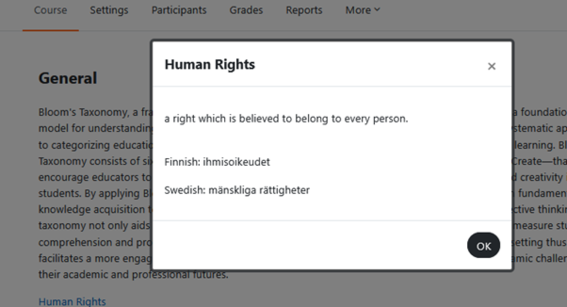
- When enabled, any occurrence of a glossary term in the course context can be automatically linked to its entry. Note that this linking might also occur in e.g. Assignment submissions that allow the Online text option.
- To enable:
- Course page → More → Filters → set “Glossary auto-linking” to On.
- In the Glossary activity settings, enable “Automatically link glossary entries.”
- In each glossary entry, check “This entry should be automatically linked.” (Both the entry author and the teacher can toggle this)
- Display options
- Multiple display formats are available (e.g., Simple dictionary, Encyclopedia, FAQ). Some formats show the author’s name. Choose a format that fits your use case.
-
Comments and assessment
- While there an option to comment on entries in the activity settings, this feature has worked inconsistently on MyCourses. Test in your course before relying on it.
- The teacher can select a "requires approval" option in the Glossary settings. So when a new submission is added by a student, the teacher can approve, edit and rate the entry from the pending approval tab.
- The activity supports grading via ratings on entries (with aggregation methods such as average, count, maximum, etc.), which feed into the gradebook.
- Students can be granted the "Rate entries" capability, like in the Database activity.
Read more: Using Glossary | MoodleDocs

OU Wiki
OU Wiki is more free-format and text-centric than the Database activity.
Navigation can be less structured than the Glossary activity (which offers alphabetical indexes and auto-linking). Consider OU Wiki when group collaboration and page-level annotation are important for your learning objectives.
- Collaborative or individual activity
- OU Wiki can function as:
- A personal glossary or individual notebook: set Subwiki to “One wiki per user.”
- A collaborative group wiki: set Subwiki to “One wiki per group,” so each group builds its own set of pages. Using the "Visible groups" option, the students can visit other groups' OU wikis in read-only mode.
- A single, whole-class wiki: set Subwiki to “Single wiki for course.”
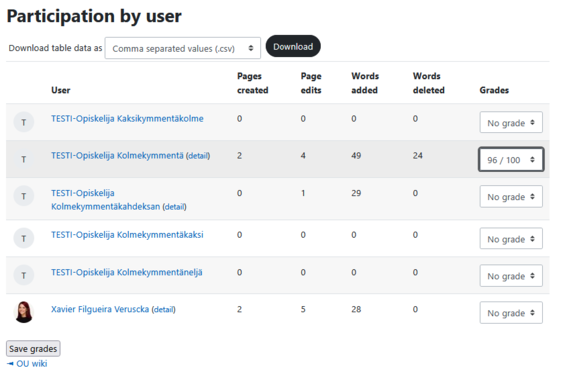
- In group mode, contributions are collaborative within each group, but the "Participation by user" report still breaks down individual contributions.
- OU Wiki can function as:
- Peer review via annotations
- OU Wiki supports annotations on pages. To enable student peer review:
- In the activity settings, enable Annotations.
- Activity → More → Permissions: add the “Student” role to the "Annotate any sub-wiki that can be viewed" and "Allowed to annotate" permissions
- OU Wiki supports annotations on pages. To enable student peer review:
- Getting started (teacher setup)
- OU Wiki requires more teacher setup than the other activities, because it is very flexible and the students might get confused. To facilitate the kickoff of the activity, it is advisable that the teacher should create the first page and establish the wiki's structure and instructions:
- As a teacher, set up the Start page, where you provide guidance on how to create and name new pages/sections and what are the edit and review rules. Consider including example pages.
- Show students how to create internal links using wiki syntax, e.g., [[Page name]].
- If this activity is using the "One wiki per group" setting, you should create a Start page for each group.
- OU Wiki requires more teacher setup than the other activities, because it is very flexible and the students might get confused. To facilitate the kickoff of the activity, it is advisable that the teacher should create the first page and establish the wiki's structure and instructions:
- Monitoring and grading
-
The “Participation by user” tab summarizes each student’s contributions (pages created, edits, words added, etc.) and allows the teacher to assign grades individually.
-