OneDrive: A data storage tool for personal work content
Two main methods to use OneDrive
You can use OneDrive …
a) in a file explorer
b) in a browser
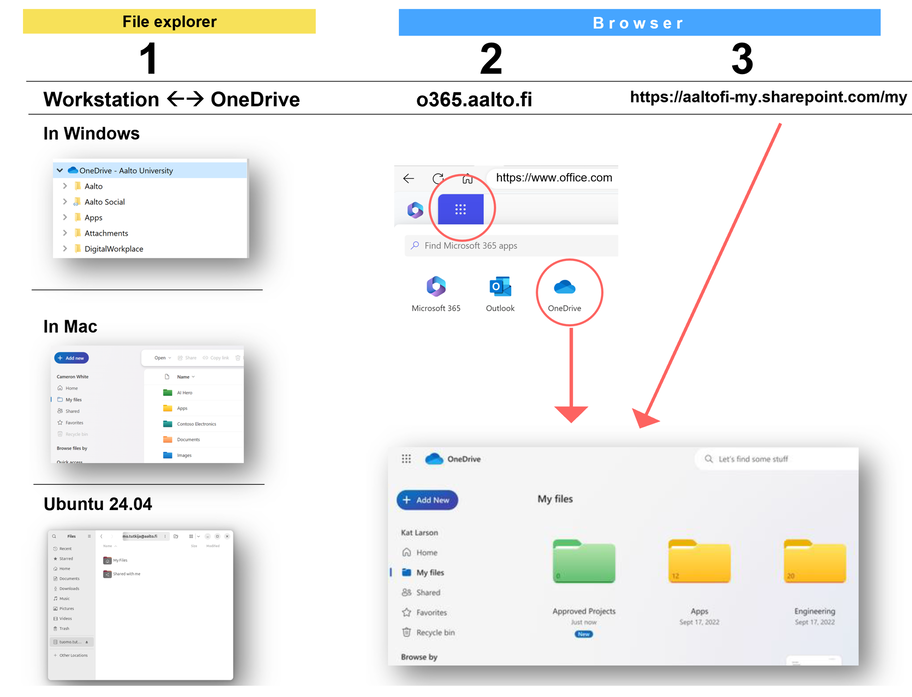
Using OneDrive in the File Manager
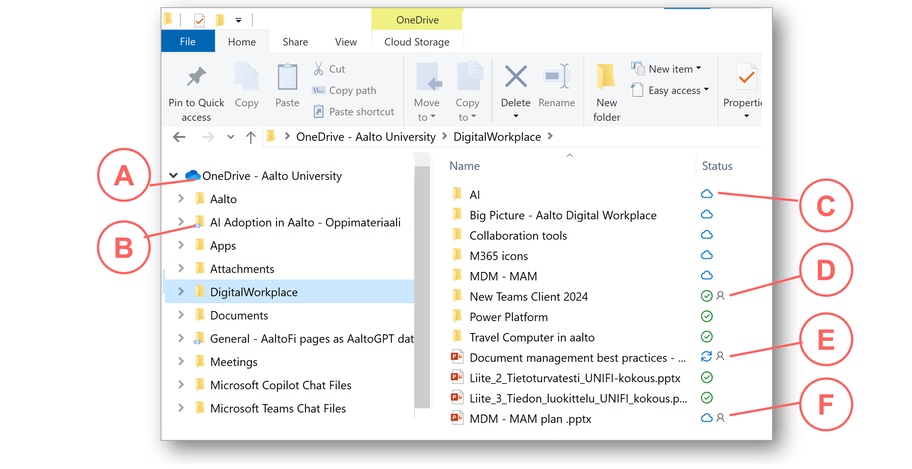
See image below. OneDrive can be found in the left-hand menu, of your file explorer.
Outline the user interface:
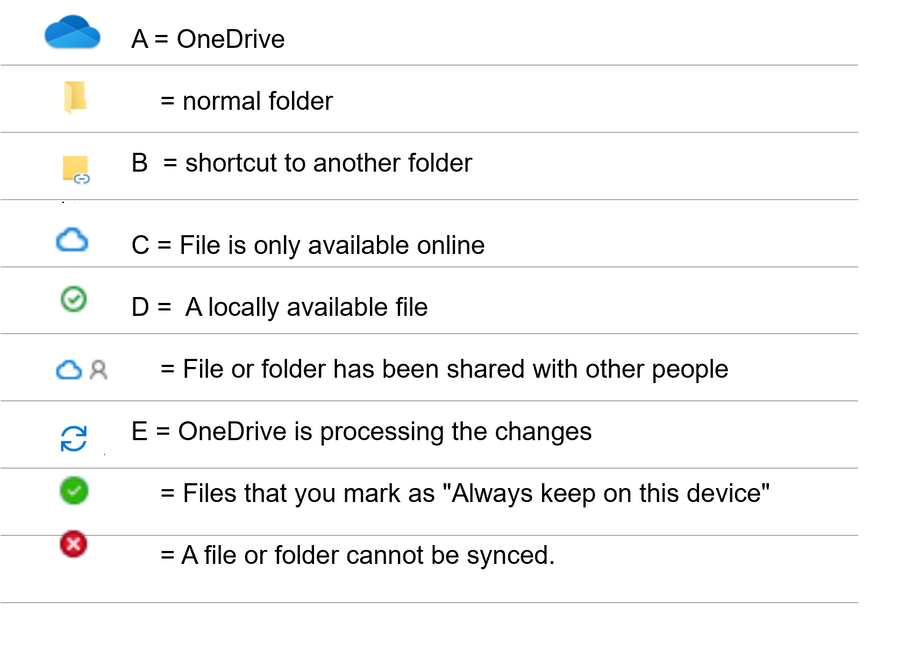
Below OneDrive (A), you can have normal folders and also Microsoft Teams-folders linked to Onedrive (B).
The folders and documents status may differ (C,D,E,F).

Using OneDrive in a browser
How to get there
Here are some examples how to access certain levels of OneDrive
OneDrive start page: https://aaltofi-my.sharepoint.com
Use this address, if you want to outline recent changes, not just the folder structure.

One step deeper, to My files: https://aaltofi-my.sharepoint.com/my
Use this address, if you want to reach just the folder structure.
File sharing inside and outside Aalto University
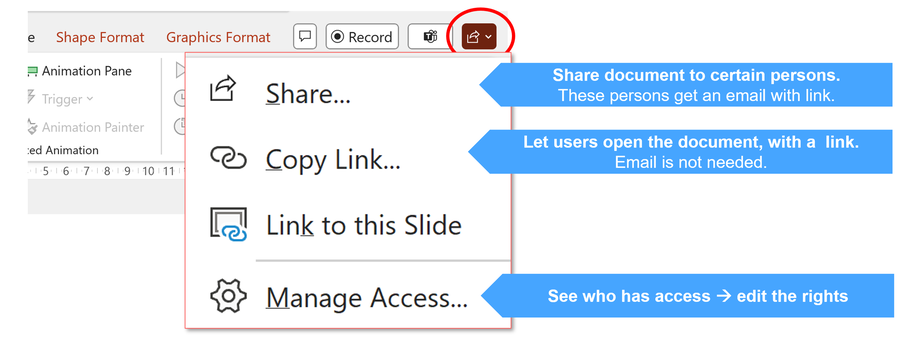
You can share a document, starting from OneDrive or from a document. Image below.
- Choose “Share”, if you want to share a document once, without possibility to share it further.
- Choose “Copy link”, if you want your colleagues to be able to use the document and perhaps share the document further.
Copy link feature
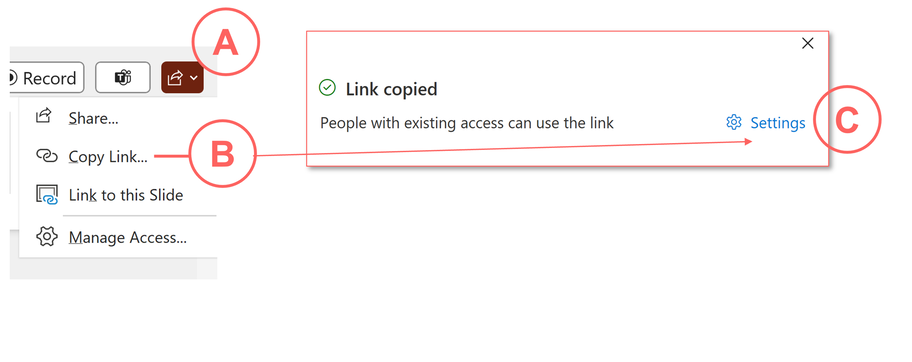
Sometimes the Share function is just too clumsy, then the Copy link feature might help you.
Image below:
A – Choose the sharing button.
B – Choose Copy link
C – Choose settings (this is the important part!)
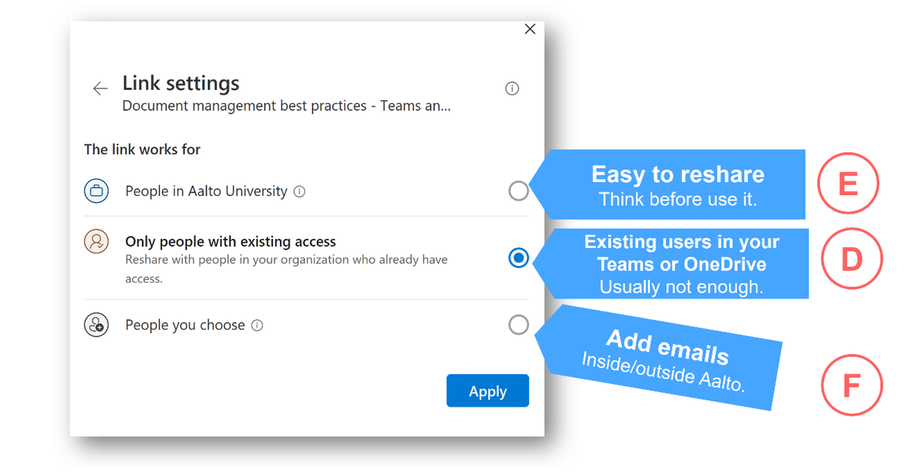
D – Using “D”, “Only people with existing access” is usually not enough, therefore...
E – Choose “People in Aalto University” if you want share the document without specifying the users, one by one. Remember: You have a possibility to disable this “copy link” action later on, but until that, you can not control who gets the link and access to your document.
F - Choose “people you choose” if you want to use a link, but to control person who could use the link. This option is combining the safety and handy link feature.